You have a document ready to share, but when you click Save or Download, you're faced with several options: PDF, JPG, or PNG.
Which one should you choose?
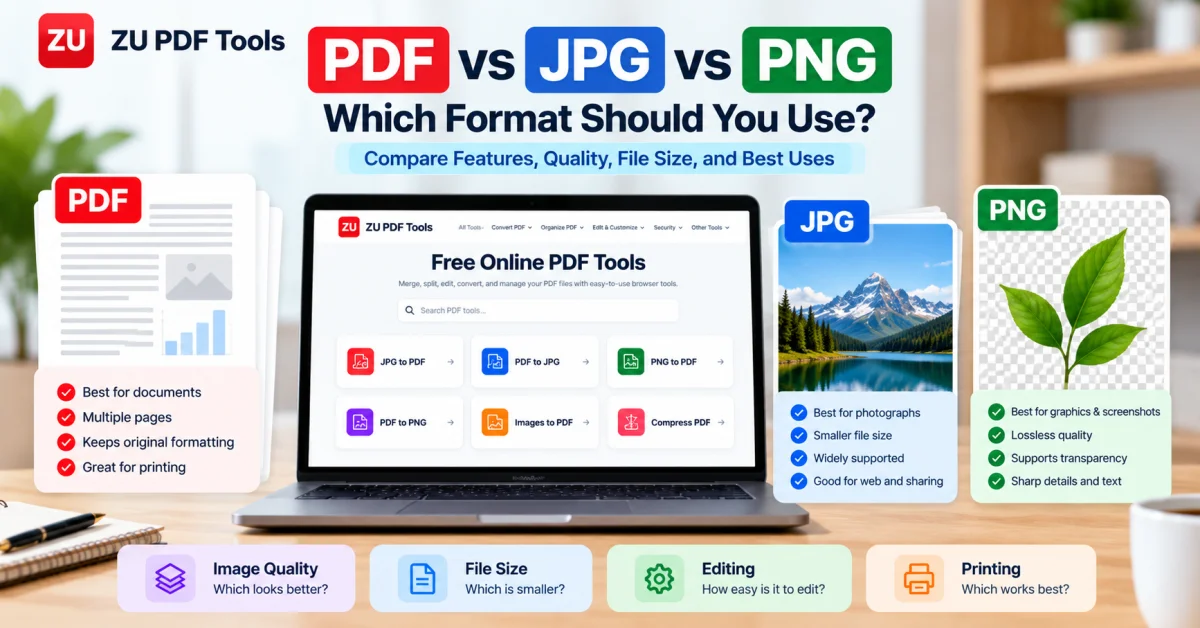
The answer depends on what you're saving and how you plan to use it. A photo that looks great as a JPG might not be ideal for a printable form. A PNG can preserve sharp graphics, but it may take up more storage space. And a PDF can hold several pages together, making it especially useful for documents.
In this guide, we'll explain how these three formats work, where each one performs best, and how to choose the right format without making your files unnecessarily large or difficult to use.
What Is a PDF File?
PDF stands for Portable Document Format. It was developed to help documents maintain a consistent appearance across different devices and operating systems.
A PDF can contain text, photographs, illustrations, tables, links, and multiple pages in one file.
For example, imagine you've prepared a five-page school assignment with headings, images, and page numbers. Saving it as a PDF helps preserve the layout when someone opens it on another computer.
When PDF works best
PDF is particularly useful for:
Reports, assignments, and research papers
Invoices, receipts, and business documents
Application forms and official paperwork
E-books and instruction manuals
Documents that need consistent formatting
Files containing multiple pages
Advantages of PDF
Consistent formatting: Text, images, and page layouts generally remain in their intended positions.
Multiple pages: A single PDF can contain an entire document rather than requiring separate image files.
Selectable text: PDFs created from digital documents can preserve searchable and selectable text.
Document features: Depending on the software and file, PDFs may support links, forms, annotations, and password protection.
Limitations of PDF
A PDF isn't always the easiest format for editing individual photographs. Some PDFs also contain scanned pages saved as images, which means their text may not be searchable without optical character recognition (OCR).
For everyday photo sharing, an image format is usually more convenient.
What Is a JPG File?
JPG, also written as JPEG, stands for Joint Photographic Experts Group.
It's one of the most widely supported formats for digital photographs and images shared online.
JPG uses lossy compression, which reduces file size by discarding some image information. With appropriate quality settings, the difference may be difficult to notice in ordinary photographs.
When JPG works best
JPG is a practical choice for:
Digital photographs
Travel and family pictures
Product photography
Website photos
Email attachments containing pictures
Social media photographs
Advantages of JPG
Smaller file sizes: JPG compression can make photographs easier to upload, download, and share.
Broad compatibility: Most phones, computers, browsers, and photo applications support JPG.
Good photographic results: JPG works especially well with photographs containing many colors and gradual changes in tone.
Limitations of JPG
JPG does not support transparency.
It can also introduce visible compression artifacts around small text, sharp edges, and detailed graphics. Repeatedly saving an edited JPG using lossy compression may further reduce image quality.
That's why JPG isn't always the best choice for screenshots, diagrams, or graphics containing fine text.
What Is a PNG File?
PNG stands for Portable Network Graphics.
Unlike JPG, PNG uses lossless compression. This means the image information is preserved when the file is compressed and saved in the PNG format.
PNG is especially useful for screenshots, diagrams, icons, and graphics that require clean edges.
When PNG works best
PNG is often the better option for:
Screenshots
Logos and interface graphics
Charts and diagrams
Images containing small text
Graphics with transparent backgrounds
Illustrations with sharp edges
Advantages of PNG
Lossless compression: Saving an image as PNG doesn't introduce JPG-style compression artifacts.
Transparency: PNG supports transparent and partially transparent areas.
Sharp details: Text, borders, icons, and flat-color graphics generally remain crisp.
Limitations of PNG
PNG files can be significantly larger than JPG files, especially when storing detailed photographs.
Also, converting an already compressed JPG into PNG won't restore the image information lost during the original JPG compression.
PDF vs JPG vs PNG: Quick Comparison
| Feature | JPG | PNG | |
|---|---|---|---|
| Primary purpose | Documents | Photographs | Graphics and screenshots |
| Multiple pages | Yes | No, generally one image | No, standard PNG is one image |
| Compression | Varies | Lossy | Lossless |
| Transparency | Supported in some content | No | Yes |
| Selectable text | Often, depending on source | No | No |
| Best for printing documents | Excellent | Sometimes | Sometimes |
| Typical photo file size | Varies | Often smaller | Often larger |
| Layout preservation | Excellent | Fixed image | Fixed image |
One important detail: PDF is a document container, not a single image compression format. A PDF can contain JPG images, other compressed images, text, and vector graphics. Its file size and quality depend on what's inside it.
Which Format Should You Use for Printing?
For a report, application form, brochure, or document containing several pages, PDF is usually the best choice.
It preserves the intended page layout and can retain text and vector graphics that print sharply.
For printing a photograph, a high-quality JPG can work well, provided the image has sufficient resolution.
PNG can also produce excellent printed graphics, particularly for diagrams and illustrations. However, its larger file size doesn't automatically mean it will print better.
The resolution and quality of the original image matter more than the file extension alone.
Which Format Is Best for Websites?
There isn't one format that works best for every website element.
JPG is commonly useful for photographic images because it can offer a good balance between visual quality and file size.
PNG is useful for transparent graphics, screenshots, and images where sharp details matter.
PDF is better suited to downloadable documents such as manuals, reports, printable forms, and guides.
For web performance, file dimensions, compression settings, and modern image alternatives also matter. Choosing JPG or PNG alone doesn't guarantee that a page will load quickly.
Which Format Is Best for Sharing Documents?
Suppose you need to email someone a three-page document.
You could send three separate JPG images, but the recipient would need to open and manage each one individually.
A single PDF is usually more convenient. The pages remain together and in the intended order.
On the other hand, if you're sharing one photograph with a friend, JPG may be the simpler option.
If you're sharing a screenshot containing instructions or small text, PNG can preserve those details more clearly.
How to Convert JPG or PNG Images to PDF
Sometimes you receive photographs or scanned documents but need to submit them as one PDF.
You can combine those images using a browser-based image-to-PDF converter.
Step 1: Open an image-to-PDF tool
Visit ZU PDF Tools and choose JPG to PDF, PNG to PDF, or Images to PDF, depending on your files.
Step 2: Select your images
Choose the pictures you want to include in your document.
If you're combining several pages, check their order before converting.
Step 3: Review the available options
Use the page arrangement and formatting options provided by the selected tool, where available.
Step 4: Convert and download
Generate the PDF and save it to your device.
Open the downloaded file to confirm that the pages appear correctly and the text remains readable.
How to Convert PDF Pages to JPG or PNG
You may also need to convert a PDF page into an image.
For example, perhaps you want to include a diagram from your own PDF in a presentation or save a document page as an image.
ZU PDF Tools provides dedicated PDF to JPG, PDF to PNG, and PDF to Images tools.
The general process is straightforward:
Open the appropriate conversion tool.
Select your PDF document.
Choose the available output settings.
Convert the pages into images.
Download the results and check their quality.
For photographic pages, JPG may provide a smaller output. For pages with small text or diagrams, PNG may be worth considering.
Remember that converting a text-based PDF into an image removes the original selectable-text behavior from the image output.
Does Converting a File Reduce Its Quality?
It depends on the conversion.
Converting a high-quality photograph to JPG with strong compression may introduce visible artifacts.
Saving a screenshot as PNG generally preserves its existing pixel information, but it won't increase the original resolution.
Converting an image to PDF doesn't automatically improve its sharpness. The PDF usually contains the image at its existing quality unless additional processing is applied.
Similarly, converting a PDF page into JPG or PNG involves rendering the page at a selected resolution. Higher output resolution can improve clarity but also increase file size.
The best approach is to start with the highest-quality original available and avoid unnecessary conversions.
Common Mistakes to Avoid
Saving text-heavy screenshots as heavily compressed JPGs
Small letters and sharp lines can become difficult to read. PNG is often a better option for this type of image.
Assuming PNG always means better quality
PNG avoids lossy compression, but it cannot restore detail missing from a low-resolution source.
Using separate images for a multipage document
If you need to submit or archive several related pages, combining them into one PDF can make the document easier to manage.
Converting a digital document into images unnecessarily
If your document already contains selectable text, keeping it as a PDF can preserve that useful feature.
Choosing a format based only on file size
A smaller file isn't always better. Readability, compatibility, transparency, and the intended use all matter.
Frequently Asked Questions
Is PDF better than JPG?
For multipage documents, forms, and reports, PDF is usually more convenient. For ordinary photographs, JPG is often the better choice.
Is PNG better quality than JPG?
PNG uses lossless compression, while JPG uses lossy compression. PNG can preserve sharp graphics and text more faithfully, but a high-quality JPG may look nearly identical for many photographs while using less storage.
Can a PDF contain JPG and PNG images?
Yes. A PDF can contain different types of images along with text, vector graphics, and other document elements.
Can I convert JPG to PDF without losing quality?
Placing a JPG inside a PDF doesn't necessarily reduce its quality. However, the result depends on whether the conversion tool recompresses or resizes the image.
Which format is best for scanned documents?
PDF is often the most practical format for storing and sharing multipage scans. PNG or JPG may be useful for individual scanned pages, depending on the content and quality requirements.
Does converting JPG to PNG improve quality?
No. Converting JPG to PNG doesn't recover details already lost through JPG compression.
Final Thoughts
Choosing between PDF, JPG, and PNG becomes easier once you think about what the file needs to do.
Choose PDF when you want to share a document, preserve page layouts, or keep multiple pages together.
Choose JPG when you're working with photographs and want a practical balance between quality and file size.
Choose PNG when you need sharp screenshots, clean graphics, or transparent backgrounds.
You don't need to use one format for everything. Each has its strengths, and understanding those differences can save time, storage space, and unnecessary conversions.
If you need to switch between image and document formats, ZU PDF Tools offers browser-based conversion tools to help you prepare files for sharing, printing, and everyday work.
For step-by-step walkthroughs, explore our tutorials on How to Convert JPG and PNG Images to PDF and How to Convert PDF Pages to JPG or PNG.