You've taken photos of some important documents, saved a few screenshots, or received several images that need to be submitted together. Everything looks fine until the website you're using asks for a PDF instead of a JPG or PNG file.
It's a common situation.
Schools often request assignments in PDF format. Businesses use PDFs for reports and supporting documents. Application portals may ask for scanned documents to be submitted as a single PDF.
The good news is that you don't need to recreate your images in a document editor just to turn them into a PDF.
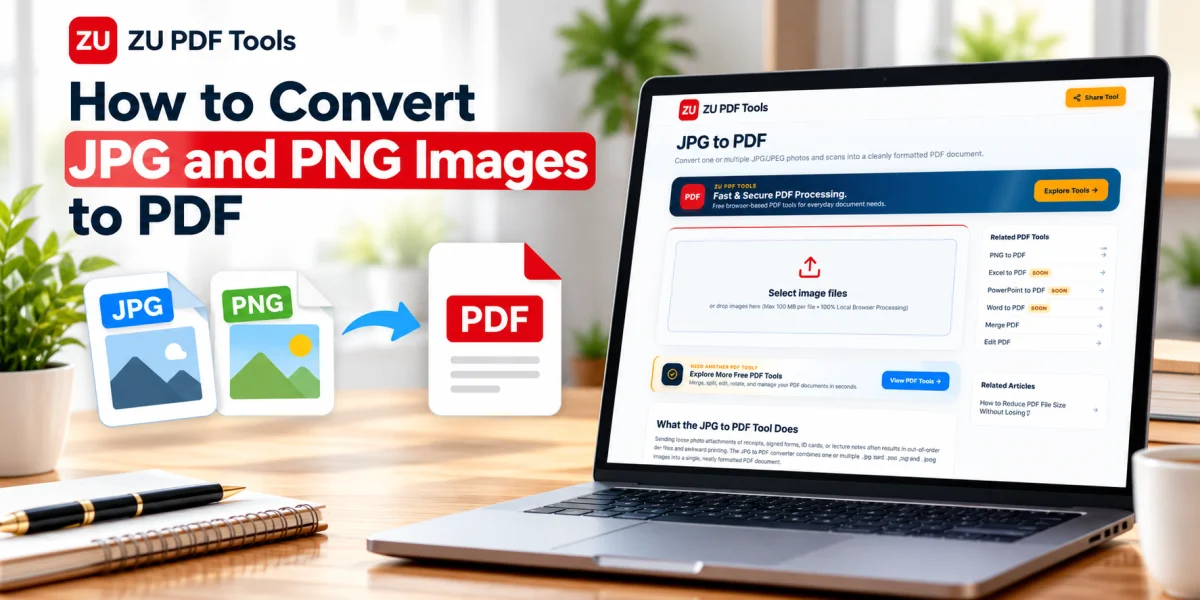
With an image-to-PDF converter, you can create a PDF from a single photograph, screenshot, or several images in a few steps.
In this guide, we'll explain how JPG and PNG conversion works, how to choose the right image format, and how to keep your finished PDF clear and properly organized.
Why Convert JPG and PNG Images to PDF?
JPG and PNG are excellent image formats, but they aren't always the most convenient way to share a collection of documents.
Imagine you've photographed five pages of handwritten notes. If you send them as separate images, the recipient has to open each file individually.
Converting those images into one PDF makes the material easier to navigate.
Here are some common reasons to use PDF format.
Keep multiple images together
Instead of sending several attachments, you can organize related images into a single document.
This is particularly helpful for assignments, scanned forms, receipts, and project records.
Preserve a consistent page layout
A PDF lets you present images on document pages with defined dimensions and orientation.
This can make the result easier to view and print.
Simplify document sharing
Many organizations accept PDF documents for applications, reports, and record submissions.
However, always check the recipient's actual file requirements before converting.
Organize pages in a specific order
When converting several images, you can arrange them in a logical sequence.
For example, you might place the first page of an assignment before the remaining pages, or organize receipts by date.
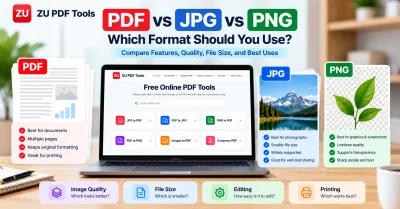
JPG vs. PNG: What's the Difference?
Before converting images, it's useful to understand the two formats.
JPG: Usually better suited to photographs
JPG, also known as JPEG, is widely used for photographs and images containing many colors.
It uses lossy compression, which can keep file sizes relatively small.
That makes JPG convenient for photographs of documents, travel pictures, and everyday images.
However, repeated editing and saving with lossy compression can reduce image quality.
PNG: Useful for screenshots and detailed graphics
PNG uses lossless compression.
It's often a good choice for screenshots, interface graphics, diagrams, and images containing sharp edges or text.
PNG also supports transparency, which can be useful for logos and other graphics.
The trade-off is that some PNG files can be larger than comparable JPG files.
Which format is better for PDF conversion?
Both can work well.
For photographs, JPG is often a practical choice.
For screenshots, diagrams, and graphics containing fine details, PNG may preserve edges and text more effectively.
The quality of the finished PDF depends on the original images and how the converter processes them.
How to Convert JPG to PDF Online
If you have a JPG photograph or scanned image, you can convert it into a PDF using a browser-based tool.
Step 1: Open the JPG to PDF converter
Visit the JPG to PDF tool on ZU PDF Tools.
Step 2: Select your JPG image
Choose the JPG file you want to convert from your device.
Before proceeding, confirm that the image is clear and correctly oriented.
If you're converting a photograph of a document, make sure the page edges are visible and the text is readable.
Step 3: Review the available options
Depending on the converter, you may be able to adjust page size, orientation, or other output settings.
Choose settings appropriate for your document.
For example, a portrait page may be suitable for a photographed letter, while a landscape page may work better for a wide diagram.
Step 4: Convert the image
Start the conversion process and allow the tool to generate the PDF.
Processing time depends on the image dimensions, file size, and device performance.
Step 5: Download and inspect the PDF
Save the converted PDF to your device.
Open it in a PDF viewer and check that the image is correctly positioned, readable, and not unexpectedly cropped.
How to Convert PNG to PDF Online
PNG conversion follows a similar process.
Step 1: Open the PNG to PDF converter
Visit the PNG to PDF tool on ZU PDF Tools.
Step 2: Choose your PNG file
Select the PNG image you want to convert.
This might be a screenshot, chart, diagram, or scanned document.
Step 3: Check the image dimensions
Some PNG images are much wider or taller than a standard document page.
Review the available page settings and make sure the converter will display the image as intended.
Step 4: Create the PDF
Use the tool's conversion option to generate the PDF.
Step 5: Review the result
Open the downloaded PDF and inspect the text, graphics, and page layout.
Pay particular attention to fine lines, small labels, and transparent areas that may appear differently against the PDF page background.
How to Combine Multiple JPG and PNG Images into One PDF
Sometimes you don't want a separate PDF for each image.
You may have several photographs of a document or a mixture of JPG screenshots and PNG diagrams that belong together.
For this task, use an image-to-PDF tool that supports multiple files.
Step 1: Gather your images
Place the images you want to combine in one folder.
Check that every file belongs in the final document.
Step 2: Put the images in order
Decide which image should appear first.
If you're working with scanned pages, arrange them in reading order.
Giving files clear names such as page-01.jpg, page-02.png, and page-03.jpg can make organization easier.
Step 3: Open the Images to PDF tool
Visit the Images to PDF tool on ZU PDF Tools.
Choose the images you want to include.
Step 4: Review the sequence and layout
If the tool provides ordering controls, arrange the images before conversion.
Review any available options for page dimensions, margins, and orientation.
Step 5: Create your combined PDF
Start the conversion process.
Once it's complete, download the resulting PDF.
Step 6: Check every page
Open the PDF and confirm that all images appear in the intended order.
Check for missing pages, incorrect orientation, cropped edges, or unreadable text.
How to Convert Images to PDF Without Losing Quality
Converting an image into a PDF doesn't automatically improve or reduce its resolution.
A PDF can contain the original image data, but some conversion tools resize or recompress images during processing.
To preserve clarity, follow these practices.
Start with clear images
If the original image is blurry, conversion won't restore the missing detail.
For photographed documents, use good lighting and keep the camera steady.
Avoid repeated conversions
Converting a JPG into a PDF, exporting it back to JPG, and then converting it again can introduce unnecessary quality changes.
Keep the original image and create the PDF directly from it whenever possible.
Use appropriate page dimensions
A very small image stretched across a large PDF page may look pixelated.
Choose a page size that makes sense for the image's dimensions and intended use.
Avoid unnecessary image compression
If your converter offers image-quality settings, choose a setting that preserves the detail you need.
Inspect small text
After conversion, zoom in on areas containing fine print, tables, or labels.
This is especially important for scanned forms and screenshots.
How to Turn Phone Photos into a PDF
You don't need a scanner to create a basic PDF from photographed documents.
A smartphone can capture pages that you later convert into PDF format.
For better results:
Place the document on a flat surface.
Use even lighting to avoid shadows.
Keep the camera as parallel to the page as possible.
Make sure all four page corners are visible.
Check that the text is in focus.
Crop unnecessary background when appropriate.
Convert the finished image into PDF format.
For important submissions, review the final document on a larger screen if possible.
A photograph that looks readable on your phone may reveal blur or distortion when enlarged.
Common Problems When Converting Images to PDF
The PDF looks blurry
This often happens when the original image has low resolution or the converter applies additional compression.
Try using the original image rather than a version downloaded from a messaging app that may have reduced its quality.
The image is cropped
The image's aspect ratio may not match the selected page size.
Check whether the converter offers fitting, scaling, or margin options.
The PDF pages are sideways
Review the original image orientation before conversion.
If the PDF has already been created, a Rotate PDF tool may help correct the page orientation.
The PDF file is too large
High-resolution images can produce large PDFs.
If possible, choose image dimensions appropriate for the intended use.
Avoid reducing resolution so aggressively that text becomes difficult to read.
Transparent PNG areas look different
PNG files can contain transparent regions.
Depending on the conversion method, these areas may appear against a white or another background in the PDF.
Inspect the output to ensure important content remains visible.
Text cannot be selected
When an image is placed into a PDF, the text inside that image usually remains part of the picture.
Converting an image into a PDF does not automatically make its text selectable or searchable.
That generally requires optical character recognition, or OCR.
Can You Convert Images to PDF on a Phone?
Yes.
Many modern mobile browsers support image-to-PDF tools, although available features vary.
You can select photographs or screenshots from your device, convert them, and save the resulting PDF.
For multiple-page documents, a larger screen may make it easier to check the order and layout.
Some phones also include built-in printing or document-scanning features that can save images as PDFs.
Is It Safe to Convert Images to PDF Online?
Safety depends on the service and the information contained in your images.
Some online tools upload images to a remote server. Others perform conversion in the browser.
Before processing sensitive documents, review the service's privacy policy and understand how files are handled.
Be especially careful with photographs of identification documents, financial records, medical information, or confidential business material.
Use only services that are appropriate for the sensitivity of your documents.
Frequently Asked Questions
Can I convert JPG to PDF for free?
Many online tools offer free JPG-to-PDF conversion. Features, file limits, and usage conditions vary between services.
Can I combine JPG and PNG files in the same PDF?
Yes. A converter that supports multiple image formats can combine JPG and PNG files into a single PDF.
Will converting PNG to PDF reduce quality?
Not necessarily. Quality depends on whether the converter preserves the image or applies resizing and additional compression.
Can I convert screenshots into PDF files?
Yes. Screenshots saved as JPG or PNG can be converted into PDF documents.
Does converting an image to PDF make the text editable?
No. Image-to-PDF conversion generally preserves the image as visual content. Editing or searching text within the image usually requires OCR.
Can I convert several images into one PDF?
Yes. A multi-image converter can place several images into one document, with each picture placed on its own page in the exact sequence you choose.
Should I use Fit to Image, A4, or US Letter page size?
Choose Fit to Image when you want each PDF page to match the exact dimensions of the original photo or screenshot. Choose A4 or US Letter when you plan to print the document or submit standardized paperwork.
Final Thoughts
Converting JPG and PNG images into a PDF makes receipts, scanned notes, portfolios, and multi-page forms much easier to organize, print, and share as a single file.
For best results, start with clear, upright images, arrange them in the right sequence before converting, and choose a page size and margin setting that matches how the document will be viewed or printed.
You can convert your files right away in your browser using JPG to PDF, PNG to PDF, or Images to PDF on ZU PDF Tools, or read our comparison guide on PDF vs JPG vs PNG: Which Format Should You Use?.