You have a PDF containing a useful chart, a presentation slide, or a scanned photograph. But instead of sharing the entire document, you only want the image.
Maybe you need to add a page from a PDF to a presentation. Perhaps you want to upload a document preview to a website, share a diagram in a message, or save individual pages as pictures.
This is where converting PDF pages into JPG or PNG files becomes useful.
You don't need to recreate the page manually or take a screenshot of your screen. A PDF-to-image converter can render a document page into an image file that you can save, share, or use in another project.
In this guide, we'll explain how PDF-to-image conversion works, when to choose JPG or PNG, and how to get clear results without unnecessarily increasing file size.
What Happens When You Convert a PDF to an Image?
A PDF can contain text, photographs, vector graphics, tables, and other elements arranged on a page.
When you convert a PDF page into JPG or PNG, the converter renders the visible page into a raster image made of pixels.
For example, a three-page PDF can become three image files:
page-01.jpgpage-02.jpgpage-03.jpg
Each image represents the appearance of one page.
This is different from extracting an original photograph embedded inside a PDF. Page conversion creates an image of the whole page, including its text, graphics, and layout.
Once a PDF page becomes a JPG or PNG image, its text is generally no longer selectable as ordinary text.
That's an important difference to understand before converting.
Why Convert PDF Pages to JPG or PNG?
There are several practical reasons to turn PDF pages into images.
Share a single page more easily
You may only need to show someone a particular diagram or page from a longer document.
An image can be convenient for messaging, previews, and quick visual reference.
Use PDF content in presentations
If a presentation application doesn't conveniently import PDF pages, converting a page into an image can provide a straightforward alternative.
Create document previews
Websites, blogs, and document libraries often display preview images.
A JPG or PNG version of a PDF page can be used as a thumbnail or visual preview.
Save scanned illustrations
Some PDFs contain scanned drawings, photographs, or diagrams.
Converting the relevant page can make it easier to use the visual content in other applications, provided you have permission to do so.
Work with image-editing software
An image editor may support JPG and PNG more directly than PDF documents.
Converting a page lets you make visual adjustments, although the result won't preserve the PDF's original editable text structure.
JPG vs. PNG: Which Format Should You Choose?
JPG and PNG are both widely supported image formats, but they work differently.
JPG: Useful for photographs and smaller image files
JPG uses lossy compression.
It can be a good choice for photographs, colorful scanned pages, and document previews where a smaller file size matters.
However, strong JPEG compression can introduce visible artifacts around small text and sharp edges.
PNG: Useful for text, diagrams, and sharp graphics
PNG uses lossless compression.
It's often a better choice for screenshots, line drawings, charts, and pages containing small text or crisp graphics.
PNG files may be larger than comparable JPG files, particularly for photographic content.
Quick comparison
| Feature | JPG | PNG |
|---|---|---|
| Compression | Lossy | Lossless |
| Photographs | Often suitable | Supported, sometimes larger |
| Small text and diagrams | May show artifacts | Often better for sharp edges |
| Transparency | Not supported | Supported |
| Typical file size | Often smaller | Can be larger |
| Best use | Photo-based pages and previews | Charts, screenshots, and text-heavy graphics |
Neither format is universally better.
Choose based on what the PDF page contains and how you plan to use the exported image.
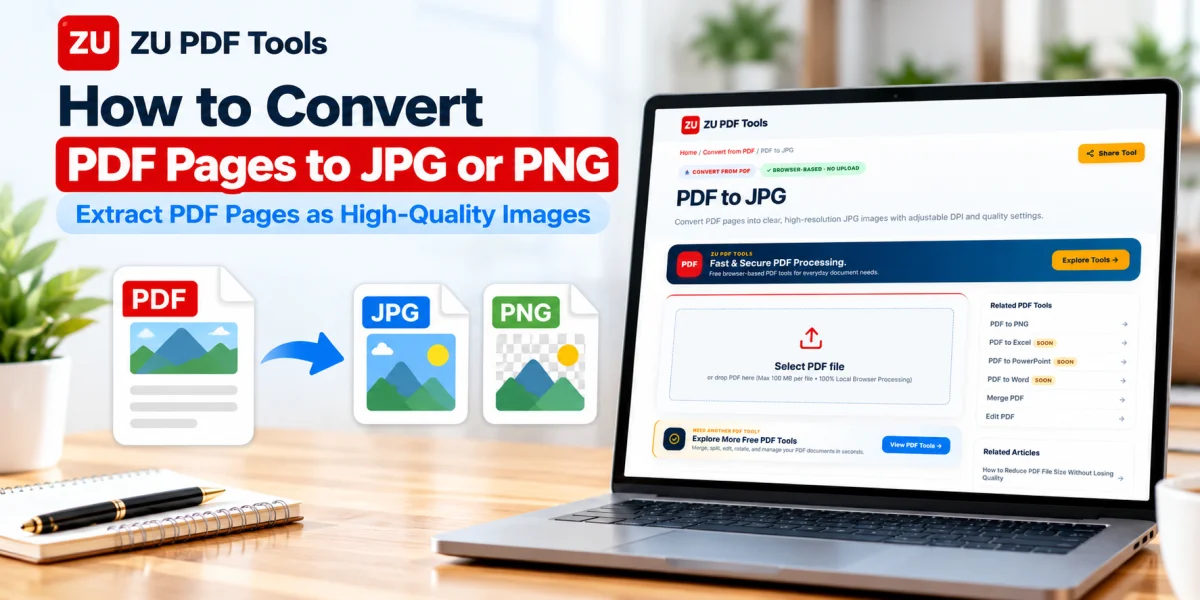
How to Convert PDF to JPG Online
If you need JPG images from a PDF, a browser-based converter can help.
Step 1: Open the PDF to JPG tool
Visit the PDF to JPG tool on ZU PDF Tools.
Step 2: Select your PDF
Choose the document from your device.
Before converting, confirm that it contains the pages you want to export.
Step 3: Review the available conversion options
Depending on the tool, you may be able to choose which pages to convert or adjust image output settings.
If you need a specific page, check whether page selection is available.
Step 4: Convert the document
Start the conversion and wait for the tool to process your PDF.
The time required depends on page count, document complexity, image resolution, and device performance.
Step 5: Download the JPG images
Save the generated images.
If the tool provides multiple files in a ZIP archive, extract the archive before using the images.
Step 6: Check the output
Open the JPG files and inspect them.
Make sure text is readable, diagrams are complete, and no page content has been cut off.
How to Convert PDF to PNG Online
PNG conversion follows a similar workflow.
Step 1: Open the PDF to PNG tool
Visit the PDF to PNG tool on ZU PDF Tools.
Step 2: Upload or select the PDF
Choose the document you want to convert.
Step 3: Select the available settings
Review any available page selection or resolution options.
For pages containing fine text or detailed graphics, a higher output resolution may help.
Step 4: Convert the PDF
Start the conversion process.
Step 5: Download the PNG images
Save the converted files to your device.
Step 6: Review the images
Zoom in on text, tables, and diagrams to confirm that the results meet your needs.
How to Convert Every PDF Page into a Separate Image
Sometimes you need images of an entire document rather than one selected page.
For example, you might be creating a visual document gallery or preparing page previews for a project.
A PDF-to-images tool can simplify this task.
Step 1: Open the PDF to Images tool
Visit the PDF to Images tool on ZU PDF Tools.
Step 2: Choose your PDF
Select the file containing the pages you want to convert.
Step 3: Review the available format options
If the tool supports different image formats, choose JPG or PNG according to your needs.
Step 4: Start the conversion
Allow the tool to render the pages.
Documents containing many pages or complex graphics may require more processing time.
Step 5: Save the resulting images
Download the generated images and organize them in a folder.
Use filenames that preserve their page order.
For example, report-page-01.png is easier to recognize than a randomly named image.
How to Convert PDF Pages Without Losing Clarity
PDF pages often contain vector text and graphics that remain sharp when zoomed in.
JPG and PNG images work differently because they contain a fixed number of pixels.
This means the resolution you choose during conversion matters.
Choose a suitable resolution
For a simple preview displayed on a website, a moderate resolution may be sufficient.
For detailed charts or pages containing small text, a higher resolution can improve readability.
However, higher resolution also produces larger image files.
Use PNG for sharp text and diagrams
PNG is often a good option when a page contains fine lines, small labels, or screenshots.
Because PNG compression is lossless, it avoids the compression artifacts associated with JPEG.
Use JPG for photographic pages
If the PDF page mainly contains photographs, JPG may provide a useful balance between visual quality and file size.
Avoid excessively low-quality JPEG settings.
Don't enlarge a low-resolution image unnecessarily
Increasing the dimensions of an already small exported image doesn't restore detail that wasn't captured during rendering.
If you need a larger image, convert the original PDF again at a higher resolution.
Inspect the result at its intended display size
An image that looks acceptable as a small thumbnail may not be clear enough for a presentation slide or printed document.
Always check the exported image in the context where it will be used.
What Resolution Should You Use for PDF to JPG or PNG?
The best resolution depends on your purpose.
For many screen previews, a moderate output resolution is sufficient.
For detailed documents, higher-resolution rendering may be helpful.
A common way to think about image output is in dots per inch, or DPI, although the final pixel dimensions are what determine how much image detail is available.
For example, a standard US Letter page is 8.5 × 11 inches.
Rendered at 150 DPI, it produces approximately 1275 × 1650 pixels.
At 300 DPI, the same page produces approximately 2550 × 3300 pixels.
The higher-resolution version contains more pixels and can show finer detail, but it may also require more storage.
Not every online converter offers a DPI control. Some use preset rendering scales instead.
Choose the highest setting you actually need rather than automatically selecting the maximum.
Can You Convert a Scanned PDF to JPG or PNG?
Yes.
A scanned PDF often contains images of printed pages.
A PDF-to-image converter can render those pages as JPG or PNG files.
However, converting a scanned PDF doesn't automatically improve the original scan.
If the source page is blurry or distorted, the exported image will generally reflect those limitations.
If your goal is to retrieve the original embedded scan without re-rendering the entire page, a dedicated image-extraction tool may be more appropriate when available.
Common PDF-to-Image Conversion Problems
The exported text looks blurry
The output resolution may be too low, or JPG compression may be too strong.
Try a higher rendering resolution or PNG format.
The image file is too large
High-resolution PNG images can consume considerable storage space.
If the page mainly contains photographs, JPG may be a more practical choice.
You can also reduce the output dimensions if the image is only needed as a small preview.
Some pages are missing
Check whether the converter processed every page or only a selected range.
Also verify that the source PDF opens correctly.
The background looks different
PDFs can contain transparency and complex graphics.
Some conversion tools render transparent regions against a solid background.
Check the output before using it in a design project.
The page is sideways
The source PDF may contain rotated pages.
If necessary, correct the orientation using a Rotate PDF tool before converting.
The image looks different from the PDF
Font rendering, transparency, color management, and complex graphics can sometimes affect the appearance of exported images.
Compare the output with the original document and try another suitable rendering method if necessary.
Is It Safe to Convert PDF Pages to Images Online?
That depends on how the service processes your documents.
Some tools upload PDFs to remote servers, while others perform conversion in your browser.
Before converting confidential documents, review the service's privacy policy and understand how files are handled.
Use extra caution with financial records, personal identification documents, medical information, and confidential business material.
Also make sure you have permission to reuse or publish the content you're converting.
Frequently Asked Questions
Can I convert a PDF page into a JPG image?
Yes. A PDF-to-JPG converter can render a page as a JPG image.
Is PNG better than JPG for PDF text?
PNG is often preferable for pages containing sharp text, diagrams, or fine lines because it uses lossless compression.
Can I convert all PDF pages at once?
Many PDF-to-image converters support batch conversion. The available features depend on the tool.
Will converting PDF to JPG reduce quality?
Conversion changes the document from PDF page content into a raster image. The resulting quality depends on the rendering resolution and JPEG compression settings.
Can I convert PDF pages to images on my phone?
Yes. Many browser-based tools support mobile devices, although processing large PDFs may be slower on some phones.
Does PDF-to-PNG conversion make the text editable?
No. The exported PNG is an image. Its text is generally not directly editable or selectable as ordinary text.
What is the difference between PDF to JPG and PDF to Images?
A PDF-to-JPG tool specifically produces JPG output. A PDF-to-Images tool may support additional image formats or batch-export options, depending on its implementation.
Final Thoughts
Converting PDF pages into JPG or PNG images can make document content easier to share, preview, and use in other applications.
Choose JPG when smaller photographic images are the priority. Choose PNG when you need sharp diagrams, screenshots, or text-heavy page images.
For the best results, start with a clear PDF, choose an appropriate rendering resolution, and inspect the exported images before sharing them.
You can explore the ZU PDF Tools PDF converters to convert document pages, organize PDFs, and prepare files for everyday use.
Not sure which image format fits your workflow best? Read our detailed comparison on PDF vs JPG vs PNG: Which Format Should You Use? or learn How to Convert JPG and PNG Images to PDF.