You've finished preparing an important document. Maybe it's a project proposal for a client, a job application, a school assignment, or a report for your manager.
Before attaching it to an email, there's one more thing worth doing: checking how the document will look when someone else opens it.
A document can contain excellent information and still make a poor impression if its pages are out of order, the formatting is inconsistent, or the recipient has trouble opening the file.
PDF is one of the most practical formats for sharing finished documents because it helps preserve their layout across devices. But simply saving something as a PDF doesn't automatically make it professional.
In this guide, we'll walk through the steps that make a PDF easier to read, organize, share, and manage.
Why Document Presentation Matters
Think about the last time you received a document that was difficult to read.
Perhaps the text was too small, some pages were sideways, or the file had an unclear name. You probably spent extra time figuring out what you were looking at.
These details matter because the person receiving your document may be reviewing several files at once.
A well-prepared PDF helps readers:
Understand the document's purpose quickly.
Navigate between sections.
Read text and view images comfortably.
Print pages without unexpected formatting changes.
Find important information.
Recognize the correct and final version.
Whether you're sharing a one-page letter or a detailed report, a few minutes of preparation can make a noticeable difference.
1. Start with a Clean and Consistent Layout
The first step happens before you convert your document to PDF.
Open the original document and review its formatting.
Use readable fonts
Choose fonts that are easy to read, such as Arial, Calibri, or other clear professional typefaces.
For most standard documents, body text around 11–12 points is a practical starting point. The ideal size depends on the font, page dimensions, and audience.
Use larger headings to distinguish important sections.
Keep spacing consistent
Avoid using different line spacing or paragraph gaps throughout the document without a reason.
Consistent spacing helps readers recognize where one section ends and another begins.
Use headings to organize information
Long documents benefit from clear headings and subheadings.
For example, a project proposal might include:
Project Overview
Objectives
Scope of Work
Timeline
Deliverables
Budget
Contact Information
These headings help readers find the information they need without searching through every paragraph.
Check alignment and margins
Make sure paragraphs, tables, images, and headings follow a consistent layout.
Leave enough space around the edges so the document remains comfortable to read and print.
2. Choose the Right Page Size
Different documents may require different page sizes.
A4 is widely used for reports, applications, and everyday office documents in many countries.
US Letter is common in the United States.
Other formats, such as Legal or A3, may be appropriate for specialized documents.
If your PDF contains pages with inconsistent dimensions, the final document may look awkward when printed or viewed.
How to standardize PDF pages
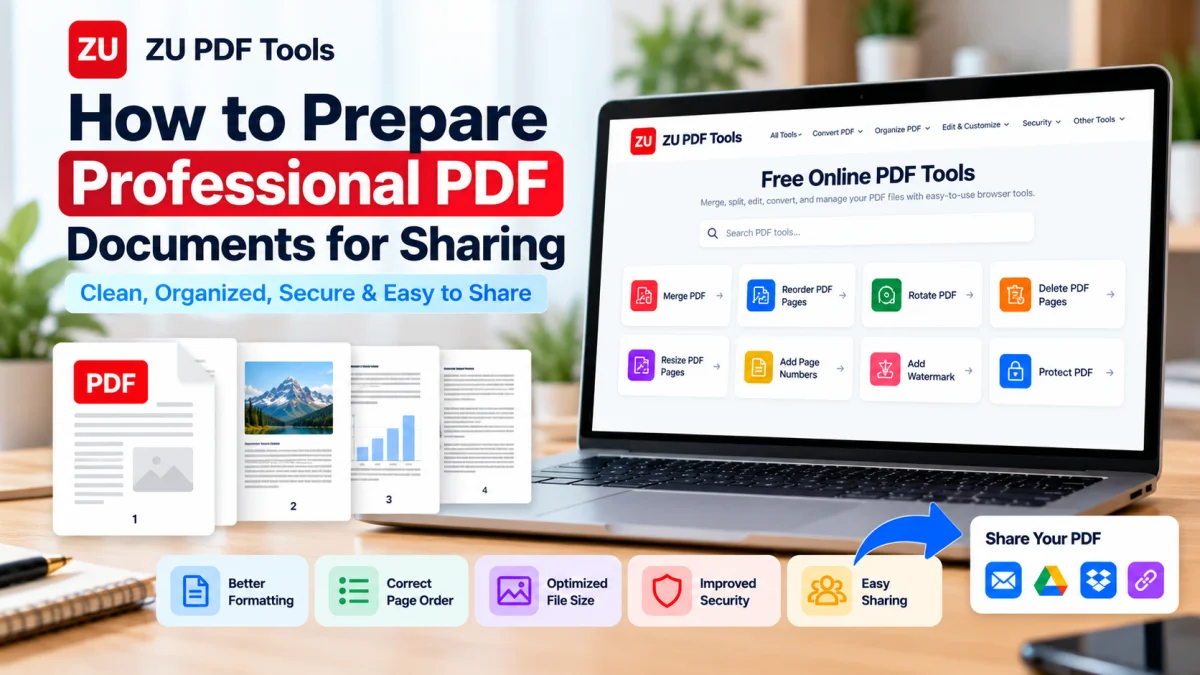
With the Resize PDF Pages tool on ZU PDF Tools, you can select a target page size such as A4, US Letter, Legal, A3, or A5.
The tool offers proportional scaling and centering so that page content can fit within the selected dimensions without being deliberately stretched.
After resizing, review the output to make sure important text and graphics remain readable.
3. Arrange Pages in the Correct Order
Page order is easy to overlook, especially when combining documents from different sources.
Imagine sending a report where the conclusion appears before the introduction.
Even if every page is correct, the document becomes confusing.
Before sharing, check that:
The cover page appears first, if applicable.
The introduction comes before the main content.
Sections follow a logical sequence.
Supporting documents appear in the correct place.
Appendices and references are included where needed.
Reorder pages using ZU PDF Tools
Open the Reorder PDF Pages tool.
Select your PDF and review its page thumbnails.
Move pages into the intended order using the available drag-and-drop or page movement controls.
Once everything looks correct, choose Reorder & Download PDF.
Open the downloaded file to confirm the final sequence.
4. Combine Related Documents into One PDF
Sometimes you need to send several documents together.
For example, a freelance project submission might include a proposal, schedule, and supporting information.
Sending each document as a separate attachment isn't always convenient.
Combining related files into one PDF can make them easier for the recipient to review.
How to merge PDFs
Open the Merge PDF tool on ZU PDF Tools.
Select the PDF files you want to combine.
Arrange them in the intended order.
Merge the documents.
Download and review the combined PDF.
Check the transitions between sections. If the original files use different page sizes or orientations, you may want to standardize them before sharing.
Keep documents separate when recipients need to process them individually or when different files have different access requirements.
5. Remove Unnecessary Pages
A professional document should contain the information the recipient actually needs.
Blank pages, duplicate sections, outdated drafts, and irrelevant attachments can make a file harder to navigate.
Review the PDF page by page and ask:
Does this page contribute something useful?
If the answer is no, consider removing it.
Remove unwanted pages
ZU PDF Tools provides a Delete PDF Pages tool that lets you select pages you no longer need.
You can also use Extract PDF Pages when you want to create a new document containing only selected pages from the original.
Always keep a copy of the original document before removing pages, especially if it contains information you may need later.
6. Fix Page Orientation
A sideways page can interrupt an otherwise well-organized document.
This commonly happens when scanned pages, charts, or landscape documents are combined into one PDF.
Before sharing, check whether every page opens in a comfortable reading orientation.
Rotate PDF pages
Open the Rotate PDF tool.
Upload your PDF and review the page thumbnails.
Rotate individual pages or apply a rotation to multiple pages as needed.
Save the updated PDF and check the results.
Remember that rotation changes page orientation, not the underlying quality of the content.
7. Add Page Numbers for Easier Navigation
Page numbers are particularly useful in longer documents.
They help readers reference specific sections and make discussions more efficient.
Instead of saying, "Look somewhere near the end," someone can say, "Please review page 8."
Page numbers are useful for:
Reports
Proposals
Academic assignments
Training materials
Manuals
Multipage contracts
Add page numbers with ZU PDF Tools
Open Add Page Numbers.
Select your PDF.
Choose a page number position.
Review the page thumbnails.
Select the pages that should receive numbers.
Apply the numbering and download the updated PDF.
If your document includes a cover page, you may prefer to leave that page unnumbered.
Check the finished file to make sure the numbers don't overlap existing text or graphics.
8. Use Watermarks When Appropriate
Watermarks can communicate the intended status or use of a document.
For example, a proposal that hasn't been finalized might include a DRAFT watermark.
Other common examples include:
CONFIDENTIAL
INTERNAL USE
SAMPLE
COPY
Watermarks can also include a company name or logo.
Add a watermark to a PDF
ZU PDF Tools offers an Add Watermark tool with options for text or image watermarks.
Depending on your requirements, you can adjust the watermark's color, size, opacity, rotation, and position.
Use a subtle watermark that doesn't make the underlying content difficult to read.
One important distinction: a confidentiality watermark is a visual notice, not an access-control system. It does not prevent someone from opening or sharing the document.
9. Protect Sensitive Documents
Not every PDF needs a password.
However, if you're sharing a document containing sensitive business information or personal details, you should consider whether additional protection is appropriate.
For example, you might need to protect:
Internal business reports
Private financial records
Confidential project proposals
Documents containing personal information
Password protection
The Protect PDF tool on ZU PDF Tools supports password-based encryption, including 128-bit and 256-bit AES options.
Choose a strong, unique password and keep it somewhere secure.
If you share the protected PDF with another person, communicate the password through a separate trusted channel rather than including it in the same email.
Remember that password protection doesn't replace careful sharing permissions, and authorized recipients may still be able to redistribute information after opening a file.
10. Check File Size Before Sending
Large PDF files can be inconvenient to share.
Some email services impose attachment limits, and recipients with slower connections may have difficulty downloading very large documents.
PDF size can increase when a file contains:
High-resolution photographs
Large scanned images
Embedded graphics
Many pages
Unnecessarily high-resolution image exports
How to manage file size
Start by checking whether the original document contains images larger than necessary.
If you have access to the original editable file, appropriately resizing or optimizing those images before exporting may help.
Avoid repeatedly converting a PDF into images and back again, since that can reduce quality or remove useful text information.
For important documents, prioritize readable text and clear graphics over achieving the smallest possible file.
11. Check Text and Image Quality
Before sending a PDF, open it and inspect the content.
Zoom in on smaller text, tables, and charts.
Look for:
Blurry scanned pages
Pixelated images
Cut-off paragraphs
Missing symbols
Overlapping elements
Unreadable table labels
A PDF created directly from a word processor often retains sharp text.
A scanned PDF may contain only images of pages, so its readability depends heavily on scan quality.
Converting a low-quality scan into PDF won't automatically sharpen blurry text, so always capture scans at a clear resolution (such as 150 to 300 DPI) with even lighting.
12. Clean Up Filenames and Document Metadata
Before sending a finished PDF to a client, employer, or instructor, check both its external filename and its internal document properties.
Replace generic filenames like scan_0042_final_v3.pdf with a clear, descriptive name such as 2026-project-proposal-acme.pdf.
You can also inspect and update the PDF's internal Title, Author, Subject, and Keywords using the Edit PDF Metadata tool on ZU PDF Tools so PDF viewers display a clean document title in the window tab.
Frequently Asked Questions
How do I make sure my PDF looks the same on every device?
Export directly to PDF from your word processor or design tool, use standard paper dimensions such as A4 or US Letter, and inspect the finished file in a PDF viewer before sending.
Should I combine multiple attachments into a single PDF?
If the documents belong to the same application, report, or client deliverable, combining them with Merge PDF and numbering the pages makes reviewing much easier.
When should I add a password to a shared PDF?
Use Protect PDF whenever the file contains confidential financial, legal, personal, or internal business records, and share the password through a separate communication channel.
Can I prepare and organize my PDF without uploading it to a server?
Yes. All 21 active tools on ZU PDF Tools run directly in your web browser, so your documents remain private on your device.
Final Thoughts
Preparing a professional PDF doesn't require expensive desktop software. Taking a few minutes to standardize page sizes, verify page order, remove blank pages, add page numbers, and check document metadata ensures your work makes a strong impression every time it's opened.
Explore our guides on How to Organize and Reorder PDF Pages, How to Add Page Numbers to PDF Documents, and How to Password Protect a PDF Document to get the most out of ZU PDF Tools.