Imagine you've finished preparing an important document. It might be a financial report, a school record, a contract, or a collection of personal information. You need to send it to someone, but you don't want anyone else who receives the file to open it.
That's where PDF password protection becomes useful.
Adding a password to a PDF can help prevent unauthorized people from reading its contents. It's a practical security measure for documents that need an extra layer of protection, especially when they're being stored or shared electronically.
But not all PDF passwords work the same way, and adding a password doesn't automatically make every aspect of a document secure.
In this guide, we'll explain how PDF password protection works, how to apply it, what encryption means, and how to share protected files responsibly.
What Does It Mean to Password Protect a PDF?
Password protecting a PDF means applying security settings that require a password to perform certain actions.
Depending on the type of protection, a password may be required to open the document or change its permissions.
For example, you might create a PDF containing confidential information and configure it so that anyone opening the file must enter the correct password.
Without that password, a compatible PDF reader should not reveal the encrypted document contents.
Password protection is especially useful when you want to limit access to information rather than simply make a document harder to edit.
Two Types of PDF Password Protection
PDF security commonly involves two different types of passwords.
1. Document Open Password
A document open password, sometimes called a user password, restricts access to the PDF's contents.
When someone opens the protected document, the PDF reader requests the password.
This is generally the type of protection you want when sharing a confidential document.
For example, if you're sending a private report to a colleague, an open password can help prevent unintended recipients from reading it.
2. Permissions Password
A permissions password, sometimes called an owner password, controls certain document operations.
Depending on the PDF's settings and the software used, these restrictions may include printing, editing, or copying content.
However, permissions restrictions are not equivalent to strong access protection. Some PDF readers or applications may not enforce them consistently.
If confidentiality is your priority, use document-open encryption rather than relying only on editing restrictions.
How to Password Protect a PDF Online
A browser-based PDF security tool can make the process straightforward.
The following steps describe the general workflow.
Step 1: Open the Protect PDF Tool
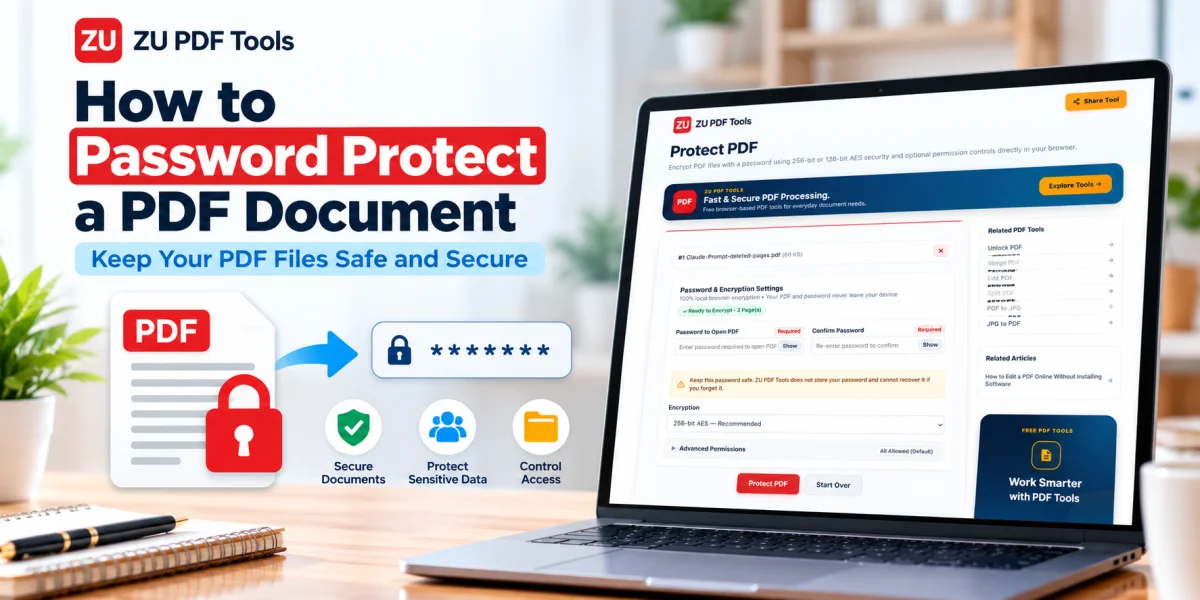
Visit the Protect PDF tool on ZU PDF Tools.
Step 2: Select Your PDF
Choose the document you want to protect from your device.
Before continuing, make sure you've selected the correct file and that you have permission to modify it.
Step 3: Enter a Strong Password
Choose a password that will be difficult for other people to guess.
Avoid simple combinations such as 12345678, your name, or common words.
A long, unique passphrase or a password generated by a reputable password manager is a better option.
Step 4: Review the Available Security Settings
Depending on the tool, you may be able to configure additional options.
For example, some PDF security applications support different encryption standards or permissions.
Use the available settings that best match your requirements.
Step 5: Protect the Document
Start the protection process and allow the tool to create the secured PDF.
Step 6: Save the Protected PDF
Download or save the new document.
Keep the original in a secure location until you've verified that the protected version works correctly.
Step 7: Test the Password
Open the protected PDF in a compatible PDF reader.
Confirm that the document requests the password and that entering the correct password allows you to view its contents.
If possible, also test it in a second reputable PDF reader to check compatibility.
How Does PDF Encryption Work?
Encryption is the technology that helps keep protected information unreadable without the appropriate credentials.
When a PDF is encrypted, its protected contents are transformed using a cryptographic algorithm.
A compatible PDF reader uses the correct password and the document's encryption information to recover the content.
Modern PDF security implementations may support AES encryption, including AES-256.
However, the actual protection depends on the encryption method used, the PDF application's implementation, and the strength of the password.
A weak password can undermine otherwise strong encryption.
That's why choosing a good password is just as important as selecting an appropriate encryption method.
How to Create a Strong PDF Password
A password should be difficult to guess but manageable for the people authorized to use it.
Here are some practical guidelines.
Make It Long
Longer passwords are generally more resistant to guessing attacks.
A unique passphrase made from several unrelated words can be easier to remember than a short, complicated password.
Avoid Personal Information
Don't use easily discovered details such as birthdays, names, or phone numbers.
Don't Reuse Important Passwords
Your PDF password shouldn't be the same as the password for your email, banking, or other important accounts.
Consider a Password Manager
A reputable password manager can generate and store strong, unique passwords.
Share the Password Separately
If you're emailing a protected PDF, avoid including its password in the same email.
Instead, share the password through a separate, trusted communication channel.
For especially sensitive information, use an approved secure document-sharing service with appropriate access controls.
When Should You Password Protect a PDF?
Password protection can be useful in several situations.
Financial Documents
Financial reports, invoices containing sensitive details, and other private financial records may benefit from additional access protection.
Business Reports
Internal company documents sometimes contain information intended for a limited group of people.
Password protection can help reduce accidental disclosure.
Personal Records
Documents containing personal information should be handled carefully.
A password-protected PDF can provide one additional safeguard, although it should not replace secure storage and sharing practices.
School and Academic Records
Some educational documents contain private student information or restricted material.
Follow the institution's document-handling policies when sharing these files.
Contracts and Agreements
Certain contracts may contain confidential commercial information.
Protecting the PDF can help restrict access while the document is being shared with authorized parties.
Is Password Protection Enough to Keep a PDF Secure?
Not always.
A strong password and appropriate encryption can provide meaningful protection, but document security involves more than one setting.
Consider the following limitations.
Passwords Can Be Shared
Anyone who knows the document's open password may be able to access its contents.
Authorized Recipients Can Still Copy Information
Once someone opens a PDF, they may be able to copy, photograph, or otherwise reproduce its contents.
Password protection does not prevent every form of redistribution.
Some Permission Restrictions Are Weak
Restrictions on printing or copying may not be respected by every PDF application.
Storage Security Still Matters
A protected PDF should still be stored in an appropriate location.
Use secure devices, updated software, and suitable account permissions.
Encryption Does Not Guarantee Authenticity
A password-protected PDF does not automatically prove who created the document or whether it has been modified.
Digital signatures address different security requirements.
How to Share a Password-Protected PDF Safely
Once you've protected the document, think carefully about how it will reach the recipient.
First, confirm that the recipient is authorized to receive the information.
Next, send the protected PDF through an appropriate communication channel.
Share the password separately, preferably through a trusted method.
For highly sensitive documents, consider a secure sharing platform that provides recipient authentication, access expiration, and other controls.
Finally, confirm that the recipient can open the file successfully.
Avoid sending confidential documents to unintended recipients, even when the files are password-protected.
Password Protecting a PDF vs. Locking Editing
These two goals are often confused.
If you want to prevent unauthorized people from reading a document, use a document-open password with appropriate encryption.
If you want to discourage changes to a document, permissions settings may help, but they are not a substitute for access protection or a digital signature.
If you need to verify that a document hasn't been altered, investigate digital signing and document-integrity solutions.
Choose the security feature that addresses your actual concern.
Common Problems with Password-Protected PDFs
The PDF Doesn't Ask for a Password
Check that you applied a document-open password rather than only setting editing restrictions.
Also verify that you're opening the newly protected file instead of the original.
The Password Isn't Accepted
Passwords are generally case-sensitive.
Check for typing mistakes, incorrect keyboard layouts, and unintended spaces.
The Recipient Can't Open the File
Some older PDF readers may not support certain encryption methods.
Ask the recipient to use an updated, reputable PDF reader that supports the document's security settings.
You Forgot the Password
If you've forgotten a password, check your password manager or any secure records where you may have stored it.
If the document belongs to an organization, contact the person responsible for its access.
You may need to obtain another authorized copy.
The PDF Is Already Protected
A PDF that already has security restrictions may require the appropriate password before its settings can be changed.
Only modify documents that you own or are authorized to manage.
Can You Remove a PDF Password Later?
Yes, if you have the necessary authorization and the correct credentials.
Some PDF applications allow you to open an encrypted document and save a new copy without the original password requirement.
You can explore the Unlock PDF tool on ZU PDF Tools for supported password-removal operations.
Remember that removing protection makes the resulting document easier to access.
Only create an unprotected copy when doing so is appropriate for the document's sensitivity.
Frequently Asked Questions
Can I password protect a PDF for free?
Some PDF tools provide free password protection. Available encryption options, file limits, and other features depend on the application.
Does a password-protected PDF use encryption?
A document-open password is typically associated with PDF encryption. The strength of the protection depends on the encryption method, software implementation, and password.
Can I add a password to a PDF on my phone?
Yes. Some mobile PDF applications and browser-based tools support password protection.
Is AES-256 good for PDF security?
AES-256 is a widely used strong encryption algorithm. However, effective protection also depends on secure implementation and a strong password.
Can someone edit a password-protected PDF?
It depends on the security settings and the PDF software being used. Permission restrictions are not enforced consistently by every application.
Can I protect a scanned PDF?
Yes. A scanned PDF can generally be encrypted just like other PDF documents.
Should I send the PDF and password together?
For sensitive documents, it's better to share the password through a separate trusted channel rather than including it alongside the protected file.
Final Thoughts
Password protecting a PDF is a useful way to add an extra layer of security to important documents.
The most important step is choosing the right kind of protection.
If you need to keep information private, use a strong document-open password with appropriate encryption. Don't rely solely on restrictions that discourage editing or printing.
Choose a unique password, store it securely, and share it only with authorized recipients.
When combined with responsible document handling, PDF password protection can help keep your information safer.
You can explore the ZU PDF Tools Protect PDF tool to learn about the available protection options for your documents.
If you ever need to create an unlocked copy of an encrypted file you own, see our step-by-step tutorial on How to Remove a Password from Your Own PDF.