You open an important PDF, enter the password, and read the document without any trouble. But the next time you open it, you have to enter the same password again.
If it's a document you use frequently, that extra step can become inconvenient.
Maybe you've received a password-protected statement that you need to keep in your personal records. Perhaps you've secured a document yourself and now want to create an accessible copy for an approved workflow.
Whatever the reason, removing password protection from a PDF can be useful when you own the document or have permission to change its security settings.
The important part is doing it responsibly.
In this guide, we'll explain the different types of PDF protection, how authorized password removal works, and what to check before saving an unprotected copy.
What Does Removing a PDF Password Mean?
Removing a password from a PDF means creating or saving a version of the document that no longer requires the original password for the protected operation.
For example, suppose you've created a PDF containing your own notes and added an opening password.
Later, you decide that you want an unprotected copy for a personal archive.
If you know the correct password, a compatible PDF application may let you open the document and save a new version without the opening restriction.
This doesn't mean the original document must be deleted or overwritten.
In fact, keeping the original protected copy until you've checked the new file is usually a sensible precaution.
Understand the Two Types of PDF Passwords
Before changing a PDF's security settings, it's helpful to understand what kind of protection it uses.
Document Open Password
A document open password prevents a PDF reader from displaying the encrypted document contents until the correct password is supplied.
This is commonly used for confidential documents.
When you remove this protection with authorization, the resulting PDF can generally be opened without entering the original password.
Permissions Password
A permissions password controls certain operations, such as editing, copying, or printing, depending on the PDF's settings.
These restrictions are different from a document open password.
A file may open normally but still display restrictions when you attempt certain actions.
Not every PDF application supports or enforces permissions restrictions in the same way.
If you need to change these settings, use an application that supports the document's security configuration and follow the document owner's permissions.
When Is It Appropriate to Remove PDF Password Protection?
There are several legitimate situations where removing protection may be useful.
Managing Your Own Documents
You might have protected a personal document temporarily and later decided that the extra restriction is no longer necessary.
Preparing an Authorized Workflow
Some document-management systems require files to be accessible without an opening password.
If you're responsible for the document and permitted to modify it, you may need to prepare a compatible copy.
Organizing Personal Records
You may prefer to store certain documents inside an encrypted storage system rather than maintain separate opening passwords for every PDF.
Make sure the alternative storage arrangement provides appropriate protection.
Sharing with an Authorized Recipient
In some situations, a recipient may need an accessible version of a document.
Before removing protection, confirm that the recipient is authorized to receive the information and that the chosen sharing method is suitable.
How to Remove a Password from Your Own PDF Online
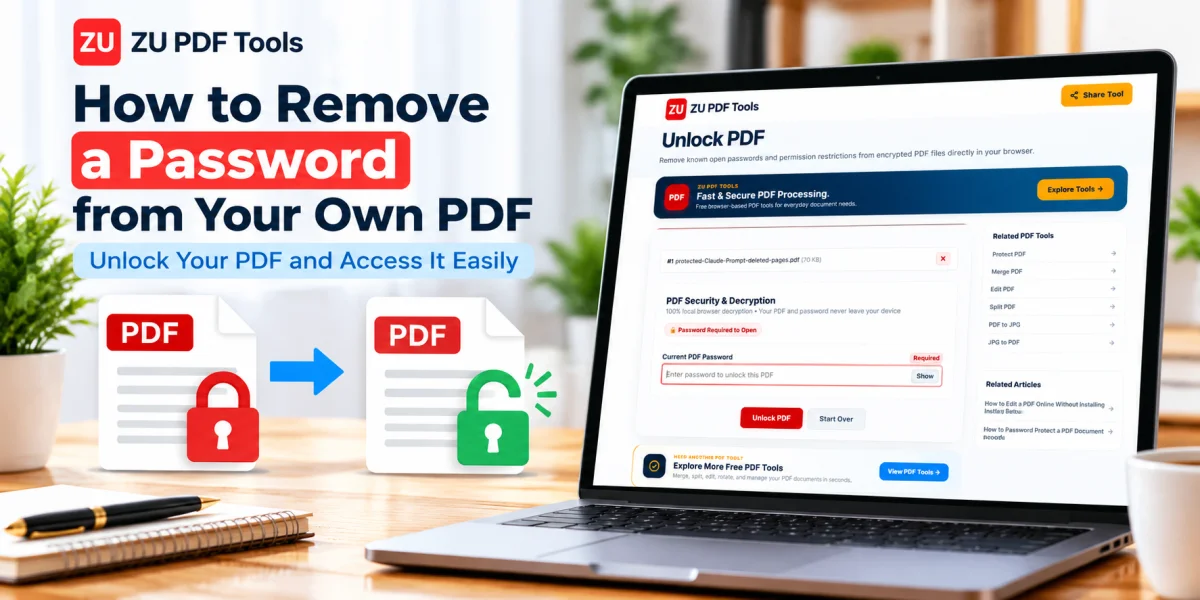
If you know the correct password and are authorized to change the document's protection, a PDF unlocking tool can help.
The following steps describe a typical workflow.
Step 1: Open the Unlock PDF Tool
Visit the Unlock PDF tool on ZU PDF Tools.
Step 2: Select Your Protected PDF
Choose the document from your device.
Confirm that it's the correct file and that you have the necessary permission to remove its protection.
Step 3: Enter the Correct Password
If the document requires an opening password, provide the valid password when prompted.
Depending on the tool and the PDF's security settings, additional authorization may be required to change certain restrictions.
Step 4: Review the Available Options
Check the settings provided by the application.
Some tools focus on removing opening passwords, while others support changes to permissions restrictions.
Use only the operations you're authorized to perform.
Step 5: Create the Unprotected PDF
Start the supported unlocking or password-removal process.
The application should produce a new PDF according to its available features.
Step 6: Save the Result
Download or save the new document.
Give it a clear filename so you can distinguish it from the protected original.
For example:
project-report-protected.pdfproject-report-accessible.pdf
Step 7: Verify the New File
Open the saved PDF in a compatible reader.
Confirm that it opens as intended and that its pages, images, and formatting remain correct.
Don't delete the original until you're satisfied with the result.
Can You Remove a PDF Password Without Changing Its Content?
In many cases, removing password protection doesn't require changing the visible text, images, or page layout.
However, the output depends on the application and the PDF's structure.
Some tools may rewrite parts of the PDF when saving it.
That's why you should compare the new file with the original.
Check that:
All pages are present.
Text remains readable.
Images display correctly.
Bookmarks and links still work.
Form fields behave as expected.
Any digital signatures remain valid, if applicable.
Be particularly careful with digitally signed documents.
Modifying or resaving a signed PDF may invalidate an existing signature or change its verification status.
If the document must retain a valid signature, consult the appropriate workflow before changing it.
What If You Forgot Your PDF Password?
If you've forgotten the password to a document you own, begin with legitimate recovery options.
Check whether the password was saved in your password manager or another secure record.
If the file was provided by an organization, contact the document owner or administrator.
You may also have an original unprotected copy stored in a secure location.
Strong PDF encryption is designed to prevent access without the appropriate credentials.
A PDF unlocking tool cannot necessarily recover an unknown opening password.
Avoid services that promise guaranteed access to every protected document.
Is It Safe to Remove a PDF Password Online?
Safety depends on the service and how it processes files.
Some PDF applications perform operations locally on your device, while others upload documents to remote servers.
Before using an online tool, review its privacy policy and file-handling practices.
For confidential records, use a method appropriate to the sensitivity of the information.
The ZU PDF Tools Unlock PDF feature is designed for browser-based processing, so the document-handling workflow can take place locally in a supported browser.
However, it's still important to use a trusted device and verify the document before sharing it.
What Happens After You Remove PDF Protection?
An unprotected PDF may become easier to open, share, and process.
That convenience comes with a security trade-off.
Anyone who obtains an unprotected copy may be able to read its contents without the original password.
This is especially important for documents containing financial details, personal records, confidential business information, or other sensitive data.
Consider whether the document should remain protected.
If you need convenient access without exposing the file unnecessarily, an encrypted storage system or an approved secure document-management platform may be a better solution.
Common Problems When Removing PDF Passwords
The Password Is Not Accepted
PDF passwords are generally case-sensitive.
Check for typing mistakes and confirm that you're using the correct password for the file.
The PDF Still Has Restrictions
The document may use a permissions password in addition to an opening password.
Different applications handle these restrictions differently.
Review the file's security settings and the authorization you have.
The Output File Doesn't Open
Confirm that the operation completed successfully.
Try opening the file in an updated PDF reader.
If the problem continues, return to the original document and use a compatible application.
The File Looks Different
Compare the output with the original PDF.
Pay attention to page order, fonts, graphics, forms, and other interactive elements.
A Digital Signature Is No Longer Valid
Changing a signed PDF can affect its signature status.
For documents that require verified signatures, preserve the signed original and follow an approved document-management process.
How to Keep an Unprotected PDF Secure
Removing an opening password doesn't mean you should stop thinking about document security.
Store the File in a Trusted Location
Use a device or storage service with appropriate access controls.
Avoid Unnecessary Copies
The more copies you create, the harder it may become to manage access.
Share Only with Authorized People
Confirm the recipient before sending confidential documents.
Use Secure Sharing Methods
For sensitive information, use a suitable secure document-sharing system rather than relying on ordinary attachments alone.
Keep a Protected Original When Appropriate
Retaining a protected original can be useful for backup or recordkeeping, depending on your requirements.
Password Removal vs. PDF Editing
Removing a password and editing a PDF are different operations.
Password removal changes the document's security configuration.
PDF editing changes content such as annotations, page arrangements, or other supported elements.
If you only need to organize a document after opening it, you may be able to use tools such as Reorder PDF Pages or Split PDF, depending on the file's permissions.
Choose the operation that matches your actual goal.
Frequently Asked Questions
Can I remove a password from a PDF I created?
Yes, if you have the necessary credentials and use a compatible application that supports changing the document's security settings.
Does removing a PDF password delete any pages?
Password removal does not normally require deleting pages. However, always inspect the resulting file to confirm that its content is intact.
Can I unlock a PDF on my phone?
Some mobile PDF applications and browser-based tools support authorized password removal. Available features depend on the software and device.
Can I remove the password without knowing it?
Strongly encrypted PDFs generally require the correct opening password or another authorized means of access. If you've forgotten it, check your secure records or contact the document owner.
Will removing a password affect a digital signature?
It can. Modifying or resaving a signed PDF may invalidate its signature or change its verification status.
Can I protect the PDF again later?
Yes. If you own the document or are authorized to manage it, you can apply new password protection using a compatible PDF security tool.
Is removing a PDF password the same as decrypting it?
Removing an opening password generally involves decrypting the protected contents with valid credentials and saving an accessible version. The exact process depends on the PDF and the software.
Final Thoughts
Removing password protection from your own PDF can make document management more convenient.
The safest approach is to use the correct credentials, work only with files you're authorized to modify, and verify the resulting document before relying on it.
Remember that an unprotected PDF is easier for others to access if the file is shared or misplaced.
For documents containing sensitive information, consider whether removing protection is truly necessary.
If you need to secure a PDF again, read our guide on How to Password Protect a PDF Document.
You can also explore the ZU PDF Tools Unlock PDF tool for supported password-removal options.