You've finished a report, filled out an application, or scanned an important document. Everything looks fine until you try to upload it.
Then you see the message: "File size exceeds the maximum allowed limit."
It's a familiar problem. A PDF that looks simple on screen can be surprisingly large, especially when it contains scanned pages, high-resolution photographs, detailed graphics, or embedded fonts.
The obvious solution is to compress the file. But there's a catch: some compression methods can make images blurry, reduce the clarity of scanned text, or change how the document looks.
Fortunately, there are ways to reduce PDF file size while preserving the quality that matters.
The key is understanding what's making your PDF large and choosing the right optimization method instead of simply applying the strongest compression setting.
Can You Reduce PDF File Size Without Losing Quality?
Yes, in some cases.
A PDF may contain unnecessary metadata, duplicate resources, inefficiently stored objects, or content that can be compressed without changing its appearance.
Removing this overhead or applying lossless compression can make a PDF smaller while preserving its original content.
However, there is an important limitation.
Not every PDF can be made significantly smaller without some loss of information.
For example, a document containing hundreds of high-resolution photographs may already use efficient image compression. Making it much smaller could require reducing image resolution or applying additional lossy compression.
The goal should be to preserve readability and visual quality, not to promise that every PDF can become dramatically smaller with absolutely no changes.
Why Are Some PDF Files So Large?
Before reducing a PDF's size, it helps to understand what contributes to it.
1. High-resolution images
Photographs and detailed illustrations often account for a large portion of a PDF's file size.
A report containing several full-page photographs can be much larger than a text-only document of the same length.
2. Scanned pages
A scanned PDF may store each page as an image.
A 50-page document scanned at high resolution and in full color can take up considerable storage space, even if most pages contain only black text on a white background.
3. Embedded fonts
PDFs may include embedded font data so that text displays consistently across different devices.
Font embedding is useful, but certain documents can contain more font data than necessary.
4. Complex graphics
Technical drawings, detailed illustrations, and documents containing transparency effects may require more data than ordinary text.
5. Repeated or unnecessary content
Some PDFs contain unused objects, duplicate resources, old revisions, or additional information that increases file size.
A suitable optimization tool may be able to remove certain unnecessary elements.
Lossless vs. Lossy PDF Compression
Understanding the difference between these two approaches helps you make better decisions.
Lossless compression
Lossless compression reduces the amount of storage needed without discarding the information being compressed.
For example, some image formats and PDF data streams can be compressed more efficiently without changing their decoded content.
This is a good option when preserving the original document is important.
However, the amount of space saved depends on the PDF's existing structure and compression.
Lossy compression
Lossy compression reduces file size by discarding some information.
For images, this might involve reducing resolution, changing color information, or applying stronger JPEG compression.
The results may still look good at normal viewing size, but fine details can be affected.
This is why a smaller PDF isn't automatically a better PDF.
Which method should you choose?
Start with lossless optimization when possible.
If the file is still too large, consider whether carefully reducing image resolution would be acceptable for the document's intended use.
For contracts, technical drawings, identification documents, and other important files, prioritize legibility and accuracy over achieving the smallest possible file size.
How to Reduce PDF File Size: 6 Practical Methods
There isn't one perfect method for every PDF. The following approaches address different causes of large files.
Method 1: Export the original document with optimized settings
If you created the PDF from Microsoft Word, PowerPoint, a design application, or another document editor, returning to the original file is often the best starting point.
Many applications provide PDF export settings that control image resolution, quality, font embedding, and compatibility.
For example, Microsoft Word offers options intended for standard-quality printing and smaller electronic distribution.
Choose the export setting that matches your purpose.
A document meant to be read on a phone may not need the same image resolution as a document intended for professional printing.
Tip: Keep the editable source file so you can create different PDF versions without repeatedly compressing an already compressed document.
Method 2: Optimize images before creating the PDF
If your PDF contains photographs or screenshots, image optimization can make a noticeable difference.
Before inserting images into a document:
Resize oversized images to appropriate dimensions.
Use JPEG for photographs when suitable.
Use PNG when lossless detail or transparency is important.
Avoid inserting extremely large images that will only appear as small thumbnails.
Check whether your document editor recompresses images during export.
For example, placing a 6000-pixel-wide photograph into a small section of a document may add unnecessary data if that resolution isn't needed.
Reducing the image dimensions before PDF creation can help.
Remember that resizing images is not lossless. The aim is to remove unnecessary resolution while keeping the image clear for its intended display or print size.
Method 3: Use appropriate scanning settings
Scanned documents are a common source of oversized PDFs.
If you're scanning ordinary printed text, you may not need full-color scanning at extremely high resolution.
Consider these settings:
Resolution: Around 300 DPI is a common starting point for many readable text documents, although small print or detailed graphics may need more.
Color mode: Grayscale or black-and-white scanning may be appropriate for documents that don't require color.
File format: Choose scanning software that supports efficient document compression.
Page boundaries: Crop unnecessary borders and empty areas where appropriate.
Always inspect the scan before deleting or discarding the original.
A smaller file isn't useful if the text becomes difficult to read.
Method 4: Remove pages you don't need
Sometimes the simplest way to reduce a PDF's size is to remove unnecessary content.
A document might contain blank pages, outdated appendices, duplicate sections, or pages that aren't relevant to the recipient.
If those pages aren't required, you can remove them with a Delete PDF Pages tool.
If you only need a specific section, the Extract Pages tool may be more useful.
Removing pages reduces the amount of document content, so it isn't the same as lossless compression of the complete original.
Only remove pages when doing so is appropriate for the document's purpose.
Method 5: Use a PDF optimization tool
Some PDF applications include optimization features that can:
Compress eligible data streams
Remove unused objects
Deduplicate certain resources
Optimize embedded images
Adjust font embedding
Clean up unnecessary document information
The exact options depend on the software.
Start with conservative settings and save the optimized PDF as a new file.
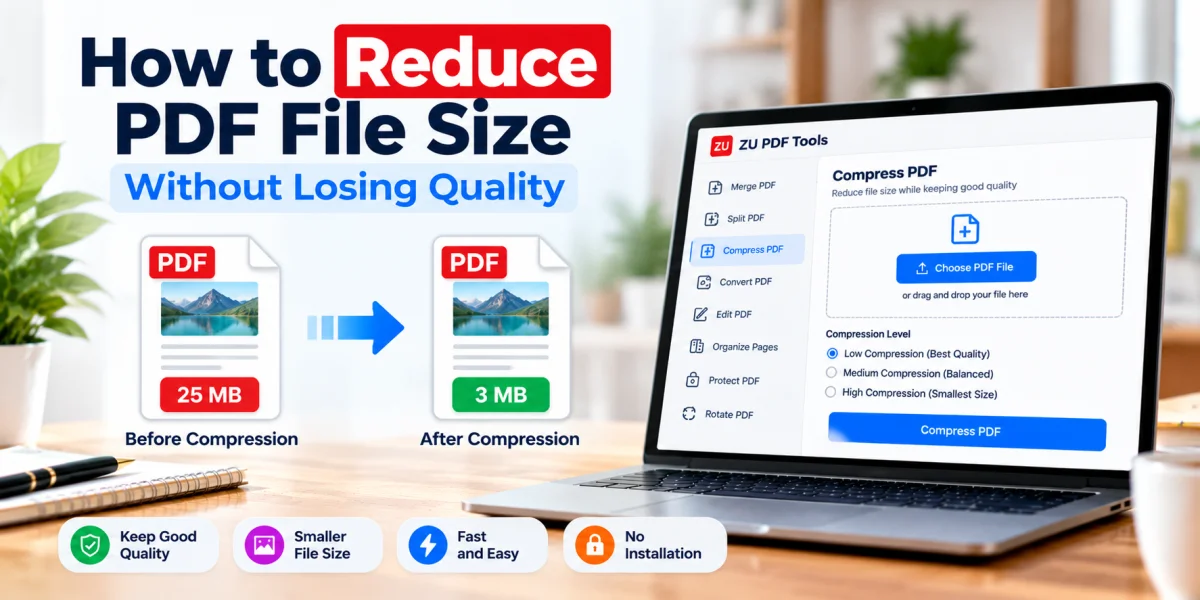
If a tool offers presets such as "High Quality," "Balanced," or "Maximum Compression," don't assume the names guarantee a particular result.
Review the actual output.
Note: ZU PDF Tools is developing additional PDF capabilities, including compression. Until that feature is available, use a reputable PDF application that provides the optimization controls you need.
Method 6: Avoid unnecessary PDF-to-image conversions
Converting PDF pages into images and then rebuilding the document can increase file size or reduce quality.
It may also remove selectable text, searchable content, and other useful PDF features.
For a normal text document, keeping the content in its original PDF form is often preferable.
If you need to create a PDF from photographs, choose appropriate image dimensions and quality settings before conversion.
You can use the JPG to PDF tool when your source material consists of JPG images.
How Much Can You Compress a PDF?
There is no universal percentage.
A PDF containing uncompressed scanned images might become substantially smaller after optimization.
A PDF containing mostly text may already be compact.
A PDF whose images have already been compressed efficiently may offer little room for further lossless reduction.
The achievable result depends on:
Original file structure
Image resolution and format
Existing compression
Number of pages
Embedded fonts and graphics
Optimization settings
Be cautious of services promising a specific reduction percentage for every document.
How to Check PDF Quality After Compression
Always compare the optimized PDF with the original before sharing it.
Check text clarity
Zoom in on small text, footnotes, numbers, and tables.
Look for blurry characters or missing symbols.
Inspect images
Check photographs, diagrams, and screenshots for visible artifacts, blockiness, or lost detail.
Verify the page layout
Make sure no text has shifted, pages haven't been cropped, and the original page order is intact.
Test important document features
If your PDF contains links, bookmarks, form fields, or other interactive elements, verify that they still work.
Compare file sizes
Check the original and optimized file sizes.
A meaningful reduction is useful, but not if it comes at the expense of required content or readability.
Keep the original
Save the optimized document under a new filename.
That gives you a way to return to the original if something doesn't look right.
Common Mistakes That Can Reduce PDF Quality
Using maximum compression immediately
The strongest preset may be designed for minimum file size rather than visual quality.
Start with conservative settings and adjust only if necessary.
Recompressing the same PDF repeatedly
Repeated lossy processing can gradually introduce more image artifacts.
Whenever possible, create a new optimized PDF from the original source instead.
Reducing scan resolution too far
Low-resolution scans can make small text difficult to read.
Choose scanning settings based on the content, not only the desired file size.
Ignoring fonts and document structure
A PDF may look fine in one viewer but display differently elsewhere if fonts or other resources are changed improperly.
Test the output in a reliable PDF viewer.
Removing important information
Deleting pages or document elements may make a file smaller, but it also changes its content.
For official or regulated documents, preserve all required information.
PDF Compression for Email, Uploads, and Printing
The best settings depend on what you're doing with the PDF.
Email attachments
For ordinary email sharing, focus on reasonable file size and clear on-screen readability.
If the document is still too large, consider using an approved file-sharing method rather than heavily degrading its images.
Online applications
Many application portals impose file size limits.
Check the exact limit and supported formats before making changes.
If your PDF exceeds the limit, try optimizing the original document or adjusting image settings.
Professional printing
Print documents may require higher-resolution images, embedded fonts, and specific color settings.
Avoid aggressive compression unless the printer or recipient confirms it is acceptable.
Long-term document storage
If you need to preserve records, prioritize completeness, readability, and compatibility.
For important archival documents, verify whether a specific standard such as PDF/A is required.
Is Online PDF Compression Safe?
That depends on the tool and how it handles files.
Some services upload documents to a server for processing, while others perform certain operations locally in the browser.
Before using an online service with confidential files, read its privacy policy and check how documents are processed, stored, and deleted.
Use extra caution with financial statements, identification documents, medical records, and confidential business information.
For sensitive or regulated documents, follow your organization's approved document-handling procedures.
Frequently Asked Questions
Can I reduce a PDF's size without changing its appearance?
Sometimes. Lossless optimization can reduce file size without changing the decoded content. However, significant reductions may not be possible if the document is already efficiently compressed.
Why is my scanned PDF so large?
Scanned PDFs often contain high-resolution images of entire pages. Color depth, scanning resolution, and image compression settings can all affect file size.
Does reducing PDF file size make text blurry?
It can if the process converts text into low-resolution images or applies aggressive lossy compression. A method that preserves original text and vector content is generally preferable.
Is it better to compress a PDF or remove pages?
It depends on your goal. Compression aims to reduce storage requirements, while removing pages changes the document's contents. If every page is necessary, don't delete pages just to reduce file size.
Can I reduce PDF size on my phone?
Yes. Some mobile document applications and browser-based tools offer PDF optimization features. Available settings vary by application.
Does ZIP compression reduce PDF size?
Sometimes, but many PDFs already contain compressed data. Putting a PDF inside a ZIP archive may produce little additional reduction, and the recipient must extract it before opening the PDF.
Will compressing a PDF remove its password?
Not necessarily. Password protection and compression are separate features. The result depends on the application and the permissions associated with the document.
Final Thoughts
Reducing PDF file size is about finding the right balance between storage efficiency and document quality.
Start by identifying why the file is large. If it contains oversized images, optimize the source images. If it's a scanned document, review the scanning settings. If it contains unnecessary pages, consider removing them.
When possible, begin with lossless optimization and only use lossy methods when the resulting quality is acceptable.
Most importantly, compare the optimized PDF with the original before sharing it.
For related document tasks, explore ZU PDF Tools to organize, extract, convert, and manage your PDF files.
For color-heavy scanned reports where color is not essential, converting the document with the Grayscale PDF tool or cleaning up document properties with Edit PDF Metadata can also help streamline your file before sharing. See our guide on How to Prepare Professional PDF Documents for Sharing for more optimization tips.