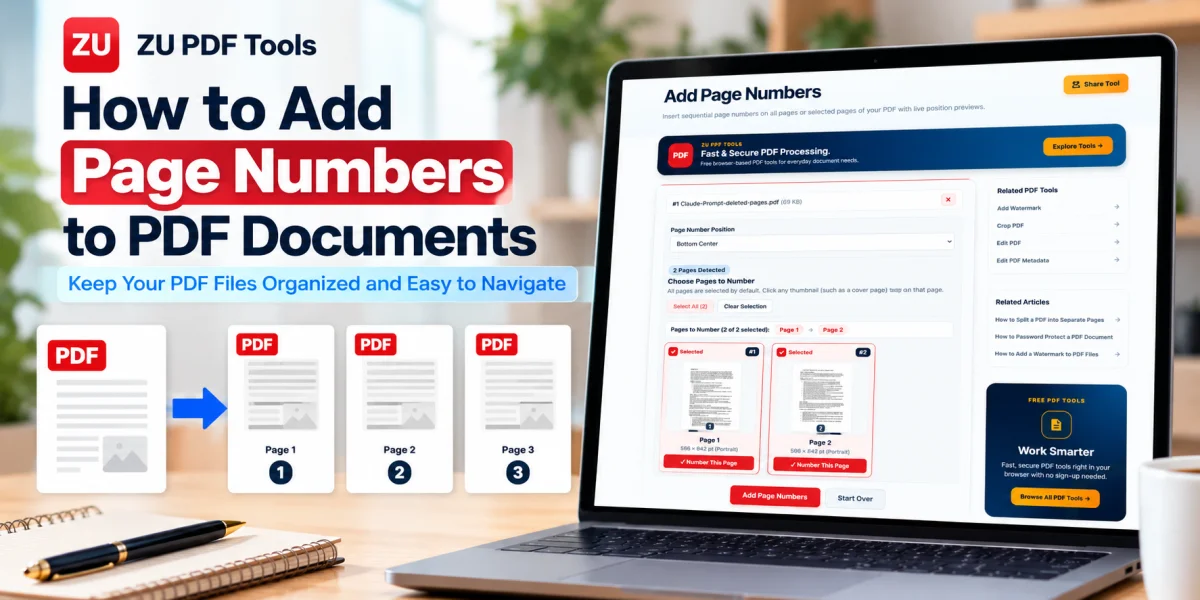
Imagine receiving a 40-page report without a single page number. You find an important paragraph, send a message asking someone to check it, and then realize you have no easy way to tell them where to look.
It's a small formatting detail, but it can make a document surprisingly difficult to use.
Page numbers help readers navigate reports, assignments, manuals, proposals, and other multi-page documents. They make it easier to reference specific information, keep printed pages in order, and notice when a page is missing.
The good news is that you don't necessarily need to return to the original Word document or install a complicated PDF editor to add them.
In this guide, we'll look at how PDF page numbering works, how to choose a suitable position, and what to check before sharing your finished document.
Why Are Page Numbers Important in a PDF?
Page numbers do more than make a document look professional.
They serve several practical purposes.
1. Easier Navigation
When a document contains dozens of pages, numbering helps readers find information quickly.
Instead of saying, "Look somewhere near the middle," you can refer to a specific page.
2. Better Organization
Printed PDF documents can easily become mixed up.
Visible page numbers make it much easier to put the pages back in the correct order.
3. Clearer Communication
If you're reviewing a proposal, school assignment, or technical manual with someone else, page numbers make discussions more precise.
You can refer to page 12 or page 27 without relying on vague descriptions.
4. More Consistent Presentation
Numbering helps a document feel complete and organized, particularly when it contains multiple sections.
5. Easier Printing and Filing
When printed pages are numbered, it's easier to check whether the complete document has been printed or filed correctly.
How to Add Page Numbers to a PDF Online
A browser-based PDF numbering tool can help you add visible page numbers to an existing document.
Here's the general process.
Step 1: Open the Add Page Numbers Tool
Visit Add Page Numbers on ZU PDF Tools.
This tool is intended for adding page numbering to PDF documents without recreating the original file.
Step 2: Select Your PDF Document
Choose the PDF you want to number.
For example, you might upload a report, assignment, instruction manual, or presentation handout.
Before continuing, check that you've selected the correct file.
Step 3: Review the Available Numbering Settings
Depending on the options displayed by the tool, you may be able to choose where page numbers appear and how they are formatted.
Look through the available settings before applying changes.
Step 4: Choose a Page Number Position
Select a position that makes the numbers easy to find without interfering with the document's content.
Common choices include the bottom center, bottom right, and top right.
Step 5: Configure the Numbering
If the tool offers settings for starting numbers, font size, or other formatting choices, select the options appropriate for your document.
If those options aren't available, use the tool's supported defaults.
Step 6: Apply Page Numbers
Use the tool's action button to add the numbers to your PDF.
Wait for the document to finish processing.
Step 7: Download the Numbered PDF
Save the updated document to your device.
A descriptive filename such as project-report-numbered.pdf can help distinguish it from the original.
Step 8: Check the Final Document
Open the downloaded PDF and review the first page, several middle pages, and the last page.
Confirm that the numbering is readable, correctly positioned, and consistent.
Where Should You Place Page Numbers?
There isn't one position that works for every document.
The best choice depends on the page layout and how the document will be used.
Bottom Center
Bottom-center numbering is a familiar choice for reports, essays, and instructional documents.
It's easy to find and generally looks balanced.
Bottom Right
Bottom-right numbering works well for many business documents and manuals.
It can be convenient when readers are flipping through printed pages.
Top Right
Top-right numbering may suit documents with a header area or layouts that leave sufficient space at the top.
Bottom Left
Bottom-left numbering can work when the opposite side contains other information.
Choosing the Right Position
Before deciding, check the document's margins, footer content, and overall design.
Avoid placing numbers over existing text, logos, charts, or signatures.
If the PDF already has a footer, choose a position that doesn't create visual clutter.
How to Choose the Starting Page Number
Not every document needs to begin with a visible number 1 on its first page.
For example, a report may contain:
A cover page
A table of contents
An introduction
The main report
References or appendices
Some organizations prefer the cover page to remain unnumbered.
Others use different numbering styles for introductory pages and the main document.
If your PDF numbering tool supports selecting a starting number or page range, you can use those options to follow the required format.
If it doesn't, you may need to prepare the document in sections or use an editor with more advanced numbering controls.
Always follow the formatting instructions provided by your school, workplace, or organization.
Page Numbers vs. PDF Page Count: What's the Difference?
This is an important distinction.
A PDF viewer may display something like:
Page 5 of 20
That tells you which page you're viewing within the file.
But it doesn't necessarily mean the number 5 is printed on the document itself.
Visible page numbers are part of the page's appearance.
They remain visible when the PDF is printed or opened in another compatible viewer.
The viewer's page counter, on the other hand, is part of the viewing interface.
If you want page numbers to appear on printed documents, you need to add visible numbering rather than relying only on the PDF viewer's counter.
Can You Add Page Numbers to a Scanned PDF?
Yes, in many cases.
A scanned PDF usually contains images of document pages rather than ordinary selectable text.
Page numbering can often be added as an additional visible element without requiring the scanned text to be recognized first.
However, scanned documents may have uneven margins, rotated pages, or different page sizes.
Before adding numbers, check that the pages are correctly oriented.
If some pages are sideways, you can first use the Rotate PDF tool.
After numbering, inspect the output to make sure the numbers aren't placed over important content.
How to Add Page Numbers to a Large PDF
Large PDFs can be harder to review, especially when they contain many chapters or sections.
A few precautions can make the process easier.
Check the page order first. Make sure the document's pages are arranged correctly before numbering them.
Use consistent positioning. Numbers should appear in a predictable location throughout the document.
Consider mixed page sizes. A document containing A4, Letter, and landscape pages may require extra attention.
Review the first and last pages. These are useful places to catch numbering mistakes.
Keep a backup. Save the original PDF before making changes.
If your document's pages are in the wrong order, consider using Reorder PDF Pages before adding page numbers.
Common Mistakes When Adding PDF Page Numbers
Placing Numbers Too Close to the Edge
Numbers positioned too close to the page boundary may be difficult to read or may be cut off during printing.
Leave enough space between the numbers and the edge of the page.
Covering Existing Content
A page number can overlap text or graphics when the original document has narrow margins.
Inspect the preview or finished file to catch this problem.
Numbering Pages in the Wrong Order
If the pages are already out of order, numbering them won't solve that issue.
Organize the document first.
Using Inconsistent Formatting
Different font sizes or positions can make a document appear untidy.
Use a consistent numbering style unless the document requires a different format for specific sections.
Adding Duplicate Page Numbers
Some PDFs already contain printed page numbers.
Adding another set can confuse readers.
Check the document before applying new numbering.
Forgetting to Check the Downloaded File
A successful download doesn't guarantee that the formatting is exactly what you intended.
Always open the final PDF and review it.
Should You Add Page Numbers Before or After Merging PDFs?
In most situations, it's better to merge your documents first and add page numbers afterward.
Here's why.
Imagine you have three PDFs containing 10, 8, and 12 pages.
If you number each file separately, the combined document may contain three different pages labeled "1."
That can be confusing.
Instead, combine the files using Merge PDF, check the final page order, and then apply numbering to the completed document.
This approach generally produces a more consistent sequence.
There are exceptions. For example, you might need each chapter or attachment to retain its own numbering.
In those cases, follow the document's specific requirements.
Does Adding Page Numbers Reduce PDF Quality?
Adding page numbers doesn't necessarily reduce the quality of the original content.
In many PDF workflows, numbering is added without converting every page into a low-resolution image.
However, the result depends on the software and how it processes the document.
For files containing detailed diagrams, photographs, or unusual fonts, inspect the final PDF carefully.
You should also verify that existing links, forms, and annotations still behave as expected.
Can You Add Page Numbers to a Password-Protected PDF?
It depends on the PDF's restrictions and the capabilities of the numbering tool.
Some protected PDFs cannot be modified until the appropriate permissions are available.
If you own the document or have permission to edit it, you may need to unlock it using its known password before adding page numbers.
You can explore Unlock PDF for supported documents.
Don't attempt to modify documents that you're not authorized to edit.
Practical Tips for Professional-Looking PDF Numbering
Here are a few habits worth following:
Use a simple, readable numbering style.
Choose a position that doesn't overlap existing content.
Keep the same placement across similar pages.
Check whether the cover page should be numbered.
Confirm that the document is in the correct order.
Review pages with tables, images, and unusual margins.
Keep the original PDF as a backup.
Open the final document before sharing or printing it.
These small checks can prevent avoidable formatting problems.
Frequently Asked Questions
Can I add page numbers to a PDF without installing software?
Yes. Browser-based PDF tools can add page numbers without requiring a separate desktop application.
Can I add page numbers to only certain PDF pages?
Some PDF editors support page ranges or individual page selection. Check whether your chosen tool provides those options.
Can I start PDF page numbering from a different number?
Some tools support custom starting numbers. If that option isn't available, you may need a more advanced editor.
Can I add page numbers to scanned documents?
Yes, many tools can add visible numbers to scanned PDF pages without requiring text recognition.
Can I add page numbers to a PDF on my phone?
Many browser-based PDF tools can be accessed on mobile devices, although the available controls and performance depend on the tool and browser.
Will adding page numbers change the original text?
Typically, page numbering adds a visible element to the page rather than requiring you to rewrite the original document.
Can I remove page numbers later?
That depends on how the numbers were added. Some editors can remove or modify numbering, while others may treat it as part of the page content.
Keeping an unnumbered original is the safest option.
Should I number a PDF before printing?
If you want the printed pages to show their numbers, adding visible page numbers before printing is usually a good approach.
Final Thoughts
Page numbering is one of the simplest ways to make a PDF easier to read, reference, print, and organize.
Whether you're preparing a report, school assignment, business proposal, or instruction manual, consistent numbering helps readers find information and keep pages in order.
The most important steps are choosing a suitable position, checking the page order, and reviewing the finished document.
If you're ready to organize your document, try Add Page Numbers on ZU PDF Tools.
A few minutes spent checking the final PDF can save considerable confusion later.
For a complete checklist before sending reports or proposals, read our guide on How to Prepare Professional PDF Documents for Sharing.