PDF files are everywhere. You receive them as invoices, application forms, school assignments, contracts, and instruction manuals. They're convenient because the layout usually stays consistent when you open the document on another device.
But what happens when you need to change something?
Maybe you forgot to add a note to a document. Perhaps you want to highlight an important paragraph, cover outdated information, or rearrange a few pages before sending the file to someone else.
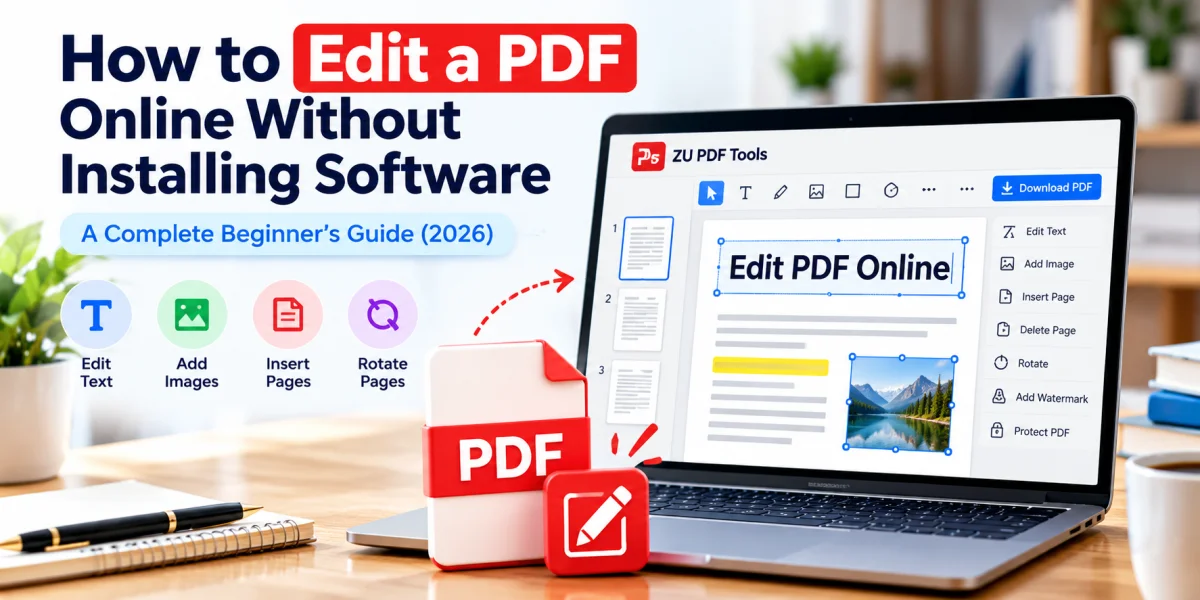
You don't necessarily need to install a large desktop application for these tasks. An online PDF editor can help you make many everyday changes directly in your web browser.
In this guide, we'll explain what online PDF editing involves, how to get started, and what to check before saving your document.
What Does It Mean to Edit a PDF?
Editing a PDF means changing something about an existing PDF document.
That might sound straightforward, but not every PDF editor supports the same features.
Some tools let you add text boxes, drawings, shapes, or annotations on top of a document. Others can modify existing text, replace images, or change the layout of a page.
There are also tools designed for organizing PDFs rather than editing their content. These help you rotate pages, remove unnecessary sections, or combine multiple documents.
Understanding the difference is important because it helps you choose the right tool for the job.
Editing existing text vs. adding new text
Imagine you have a PDF invoice with an incorrect address.
If you need to change the original address while preserving the document's formatting, you'll need an editor that supports modifying existing PDF text.
However, if you simply want to add a note explaining the correction, a tool that supports text overlays may be enough.
Tip: Always check whether your chosen editor can modify original text or only add new elements to the page.
Why Use an Online PDF Editor?
For occasional document changes, browser-based editing can be convenient.
No software installation
You can open a compatible PDF editor in your browser instead of downloading and installing a separate program.
This is particularly useful when you're using a shared computer or a device with limited storage.
Convenient for everyday tasks
Online editors can be useful for reviewing forms, adding annotations, preparing documents for sharing, or making small adjustments.
Works across different devices
Many browser-based tools work on Windows, macOS, and other platforms with modern browsers.
The exact experience may vary depending on your device, browser, and the complexity of your PDF.
A simpler workflow
For a small change, opening a browser-based editor can be quicker than launching a full desktop document application.
However, desktop software may still be the better choice for advanced editing or particularly large documents.
How to Edit a PDF Online: Step by Step
The following workflow covers common browser-based PDF editing tasks.
Step 1: Choose a PDF editor
Start by choosing a tool that supports the type of change you need.
For example, adding a text box is different from rewriting an existing paragraph. Similarly, deleting a page is different from removing an image within that page.
You can explore the ZU PDF Tools PDF editor to see which editing features are available.
Step 2: Open your PDF file
Use the tool's file selection option to choose a PDF from your device.
Wait for the document to load, especially if it contains many pages or high-resolution images.
Before making changes, confirm that the correct file has opened.
Step 3: Make your changes
Depending on the editor's available features, you may be able to add text, place annotations, draw shapes, or adjust elements on the page.
Work through the document carefully.
If you're editing an important form or professional document, avoid covering information that other people may still need to read.
Step 4: Review every modified page
Don't rush straight to downloading.
Check that your additions appear in the correct places and that no important information has been hidden or moved.
Pay particular attention to page margins, tables, signatures, and text near the edges.
Step 5: Save or download the edited PDF
When you're satisfied, use the editor's available save or download option.
Open the resulting PDF in a viewer and inspect it again.
A successful download doesn't always mean the document looks exactly as expected.
Step 6: Keep an original copy
It's good practice to keep the original document until you've confirmed that the edited version works correctly.
For important files, save the edited copy under a different filename, such as invoice-revised.pdf.
Common PDF Editing Tasks
Sometimes the feature you need isn't actually part of a general PDF editor. A dedicated tool may be easier.
Combine multiple PDFs
If you have several documents that belong together, use a Merge PDF tool to combine them into one file.
This can be helpful when preparing application documents or organizing related reports.
Remove unnecessary pages
A long PDF might contain blank pages, outdated sections, or pages you no longer need.
A dedicated Delete PDF Pages tool can help you create a shorter document without rebuilding it from scratch.
Rotate pages
Scanned documents sometimes contain sideways or upside-down pages.
A Rotate PDF tool can help correct their orientation before you share the file.
Add a watermark
A watermark can help identify a draft, label a document, or display a business name.
Remember that a watermark is not a substitute for proper access controls or document security.
Rearrange pages
If the pages are in the wrong order, use a Reorder PDF Pages tool to move them into the correct sequence.
This is particularly useful for scanned documents and multi-page submissions.
What About Scanned PDFs?
Scanned PDFs can behave differently from ordinary digital documents.
A digital PDF may contain selectable text. A scanned PDF, on the other hand, may simply contain pictures of printed pages.
If you cannot select individual words, the document may be image-based.
Changing the original text in a scanned document usually requires optical character recognition, commonly called OCR, followed by an editor that supports the resulting text.
OCR isn't always perfect. Small print, unusual fonts, handwriting, and low-quality scans can cause recognition errors.
If your document is scanned, check whether your chosen tool supports OCR before expecting to edit its original text.
Tips for Better PDF Editing Results
A few simple habits can prevent frustrating mistakes.
Use a clear original file. If a PDF contains blurry scans or distorted pages, editing won't automatically restore the missing detail.
Avoid unnecessary changes. The fewer elements you modify, the easier it is to preserve the document's original appearance.
Check fonts and spacing. New text may not perfectly match the font embedded in the original PDF.
Inspect the final file. Open the downloaded PDF and check it at normal reading size.
Keep a backup. Save the original separately, especially when working with legal, academic, or financial documents.
Respect document permissions. Only modify files you own or are authorized to edit.
Is It Safe to Edit a PDF Online?
Safety depends on how the editor handles your files and what information the document contains.
Before using any online PDF tool, consider these questions:
Does the tool process documents in your browser or upload them to a server?
Does its privacy policy explain what happens to uploaded files?
Does the website use HTTPS?
Are you comfortable using the service for the information in your document?
Browser-based processing can reduce the need to transfer document contents to a remote processing server, but it doesn't automatically guarantee complete privacy.
For confidential medical records, financial information, legal documents, or other sensitive material, review the service's actual privacy practices before proceeding.
If you're using a shared computer, remember to remove downloaded documents from the device when appropriate.
When Is Desktop PDF Software Better?
Online editing is convenient, but it isn't the best solution for every document.
Desktop applications may be preferable when you need to:
Make extensive changes to existing text and layouts
Work with unusually large or complex PDFs
Perform advanced OCR
Edit documents without an internet connection
Use specialized professional PDF features
The best choice depends on the task, not simply whether a tool is online or installed.
For a quick annotation or page adjustment, a browser-based editor may be sufficient. For rebuilding a complex document, dedicated desktop software may save time.
Frequently Asked Questions
Can I edit a PDF without Adobe Acrobat?
Yes. Many alternative PDF editors offer browser-based or desktop editing features. The available options depend on whether you need to add annotations, change existing text, or organize pages.
Can I edit a PDF on my phone?
Many online PDF tools work in mobile browsers, although editing can be more difficult on a small screen. For detailed changes, a laptop or desktop computer may be more convenient.
Can I edit text in a scanned PDF?
Usually, you'll need OCR to recognize text in scanned pages. You may then need an editor capable of modifying the recognized text.
Will editing a PDF reduce its quality?
Not necessarily. Simple annotations or page organization may preserve the appearance of the original document. However, image conversion, recompression, and some editing operations can affect quality.
Can I edit a password-protected PDF?
That depends on the restrictions applied to the file and the features supported by your editor. You should only unlock or modify protected documents when you have the necessary permission.
Final Thoughts
Editing a PDF doesn't have to be complicated.
The key is knowing exactly what you want to change and choosing a tool designed for that task.
If you only need to add a note, rotate a page, remove an unnecessary section, or combine documents, a browser-based PDF tool may be all you need.
For more complex changes, such as replacing original text or editing scanned documents, look for an editor with the appropriate advanced features.
Explore ZU PDF Tools to find tools for editing, organizing, converting, and preparing PDF documents for everyday use.
Looking for more ways to customize your document? Read our step-by-step guides on How to Add a Watermark to PDF Files and How to Add Page Numbers to PDF Documents.