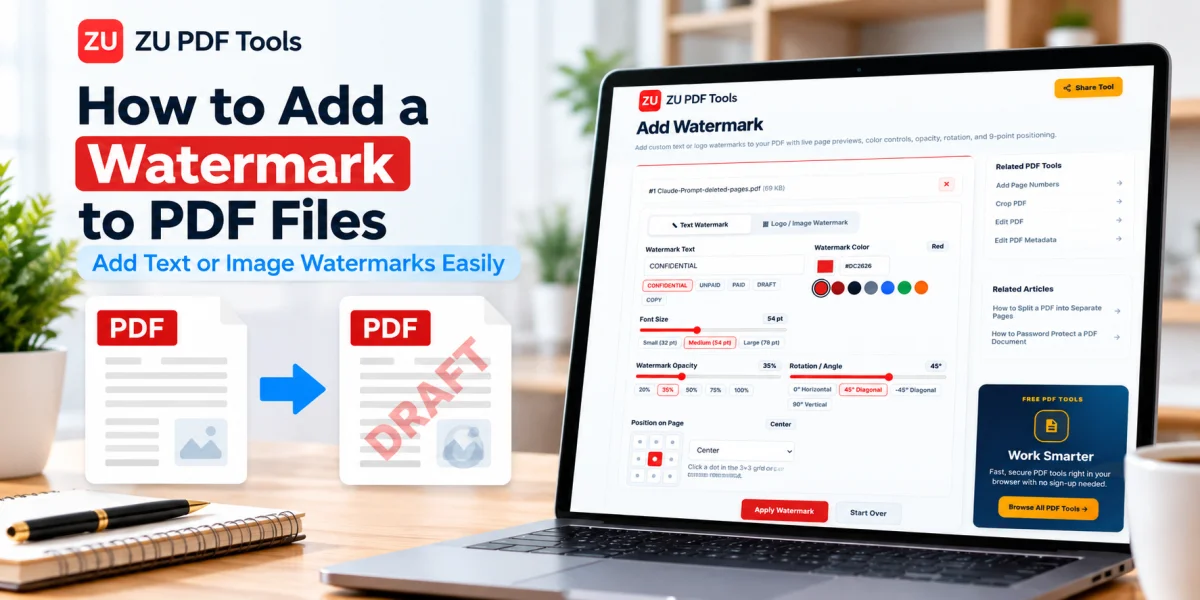
You've finished preparing a PDF report and want to share it with a client. The content is ready, the pages are in the correct order, and everything looks professional. There's just one thing missing: you want readers to know that the document is a draft.
Or perhaps you're sharing a sample of your work and would like your business name to appear on every page.
A watermark can help with both situations.
Adding a watermark to a PDF is a practical way to label documents, display branding, and communicate their intended use. You can add words such as "DRAFT" or "CONFIDENTIAL," or place a company logo on the pages.
The key is making the watermark visible without making the original document difficult to read.
In this guide, we'll explain how PDF watermarks work, how to add them online, and how to choose the right settings for different documents.
What Is a PDF Watermark?
A watermark is text or an image placed on a document page, usually as an overlay or background element.
Unlike ordinary document content, a watermark is generally intended to communicate information about the document itself.
For example, a business might add a faint "DRAFT" label across a report that hasn't been approved.
A photographer might include a small logo on a PDF portfolio.
A company might add its name to a document intended for internal circulation.
Watermarks can appear in different positions, sizes, colors, and transparency levels.
Some cover the center of a page diagonally, while others sit quietly in a corner.
The right approach depends on what you're trying to communicate.
Why Add a Watermark to a PDF?
Watermarks serve several useful purposes.
Identify Draft Documents
When a document is still being reviewed, a "DRAFT" watermark makes its status easier to recognize.
This can help prevent confusion between working versions and finalized documents.
Display Business Branding
A company logo or business name can make reports, presentations, and sample documents more recognizable.
Indicate Confidentiality
Labels such as "CONFIDENTIAL" or "INTERNAL USE" can remind recipients that a document contains information requiring careful handling.
However, a watermark does not prevent unauthorized access. Confidential documents may also need encryption and appropriate sharing controls.
Mark Sample Documents
Designers, photographers, and other professionals sometimes watermark preview documents to identify them as samples.
Support Document Organization
Labels such as "REVIEW COPY," "APPROVED," or "ARCHIVED" can make a document's intended status clearer.
A watermark is a visual indicator, not proof of approval or authenticity.
Types of PDF Watermarks
There are two main categories of watermarks commonly used in PDF documents.
1. Text Watermarks
A text watermark contains words or short phrases.
Common examples include:
DRAFT
CONFIDENTIAL
SAMPLE
INTERNAL USE
REVIEW COPY
Company or department names
Text watermarks are often easy to customize.
Depending on the tool, you may be able to adjust font size, color, opacity, rotation, and placement.
A large diagonal watermark works well for a draft label, while a small watermark near the bottom of the page may be better for branding.
2. Image Watermarks
An image watermark uses a graphic, such as a company logo.
Image watermarks can help maintain a consistent brand identity across documents.
For best results, start with a clear, appropriately sized image.
If your watermark has a transparent background, a PNG file may be useful, provided the PDF tool supports it.
Avoid using an unnecessarily large image, especially when processing a document containing many pages.
How to Add a Text Watermark to a PDF Online
A browser-based PDF watermark tool can help you add a label without rebuilding the document.
Here's a typical workflow.
Step 1: Open the Add Watermark Tool
Visit the Add Watermark tool on ZU PDF Tools.
Step 2: Select Your PDF
Choose the document you want to watermark.
Make sure it's the correct version, particularly if you're working with several drafts.
Step 3: Choose a Text Watermark
If the tool offers text and image watermark options, select the text option.
Enter the message you want to display.
For example, you might use "DRAFT" for a report that is still under review.
Step 4: Adjust the Appearance
Review the customization settings available in the tool.
Depending on its features, you may be able to change the text size, color, opacity, rotation, or placement.
Choose a style that is visible but doesn't interfere with the document's content.
Step 5: Preview the Watermark
If a preview is available, inspect how the watermark appears on the page.
Check areas containing small text, charts, and photographs.
Step 6: Apply the Watermark
Start the watermarking process.
Allow the tool to generate the updated PDF.
Step 7: Download and Review the PDF
Save the watermarked document and open it in a PDF reader.
Check several pages, including pages with different layouts.
Make sure the watermark appears as intended and the original content remains readable.
How to Add a Logo or Image Watermark to a PDF
An image watermark is useful when you want to add branding rather than a text label.
Step 1: Prepare Your Logo
Use a clean, high-quality version of your logo.
A transparent background can help the graphic blend naturally with the document.
Step 2: Open the Watermark Tool
Visit the ZU PDF Tools Add Watermark page.
Step 3: Select Your PDF
Choose the document you want to update.
Step 4: Choose an Image Watermark
If image watermarking is supported, select that option and choose your logo or graphic.
Step 5: Adjust Size and Position
Make sure the image doesn't cover important text or diagrams.
A small logo near the corner may be appropriate for a report, while a larger, faint centered logo may work for a sample document.
Step 6: Apply and Save
Generate the updated PDF and download it.
Open the file and confirm that the logo appears correctly on the intended pages.
How to Choose the Best Watermark Position
The placement of a watermark affects both its visibility and the readability of the document.
Centered Watermarks
A centered watermark is highly noticeable.
It works well for labels such as "DRAFT" or "SAMPLE," especially when displayed diagonally.
Use sufficient transparency so the original content remains legible.
Corner Watermarks
A small watermark in the top or bottom corner is often less distracting.
This placement can work well for company logos and document branding.
Header or Footer Areas
Some documents have enough space in the header or footer for a subtle watermark.
Check that the placement doesn't overlap page numbers, footnotes, or other information.
Full-Page Background Watermarks
A large, faint image can create a branded appearance across the page.
However, it may interfere with text and graphics if the opacity is too high.
Always preview the result before using this style.
What Opacity Should You Use for a PDF Watermark?
Opacity determines how transparent a watermark appears.
At full opacity, the watermark is solid.
At lower opacity, the original page content remains more visible through it.
For many text-heavy documents, a light watermark is preferable.
For example, you might begin with approximately 20% to 30% opacity and adjust based on the page design.
This is only a starting point, not a universal rule.
A watermark over a white background may look different from the same watermark over a photograph or dark chart.
The best setting is the one that communicates your message without reducing readability.
Should You Put a Watermark on Every PDF Page?
That depends on the document and its purpose.
Every Page
Applying a watermark to every page can be useful for multi-page draft reports, branded sample documents, and internal review copies.
Selected Pages
Sometimes only a cover page or particular section needs a watermark.
For example, a preview document might include a sample label on selected pages.
Not every watermark tool supports individual page selection, so check the available options.
First Page Only
A small logo or document-status label on the first page may be sufficient when you want subtle branding.
Consider how the document will be shared and whether individual pages might be separated later.
Can You Add a Watermark Without Reducing PDF Quality?
In many cases, adding a watermark does not require converting the entire PDF into images.
A suitable PDF application can place additional text or graphics on the existing pages while retaining their underlying content.
However, the exact result depends on the tool and the document.
Some applications may rewrite internal PDF structures or handle complex elements differently.
For important documents, compare the original and watermarked versions.
Pay attention to text clarity, image resolution, links, forms, and page layout.
Also remember that modifying a digitally signed PDF can invalidate its signature.
Does a Watermark Protect a PDF from Copying?
Not by itself.
A watermark can communicate ownership, branding, or document status, but it isn't a reliable technical barrier against copying.
Someone with access to a PDF may still be able to reproduce its contents.
A visible watermark can also sometimes be removed or altered.
If you need to restrict who can open a document, consider appropriate encryption and access controls.
You can learn more in our guide on How to Password Protect a PDF Document.
For confidential files, watermarking should be treated as one part of a broader document-handling process rather than a complete security solution.
Common Problems When Adding PDF Watermarks
The Watermark Is Too Dark
Reduce its opacity or choose a lighter color.
A watermark shouldn't make important text difficult to read.
The Watermark Covers Important Content
Change its position, size, or rotation.
Inspect pages containing tables and diagrams because these may have less empty space.
The Logo Looks Blurry
Use a higher-quality source image.
Avoid enlarging a small logo beyond its useful resolution.
The Watermark Doesn't Appear on Every Page
Check the tool's page-selection options and confirm that the intended pages were included.
The Watermark Looks Different on Some Pages
Pages may have different sizes, orientations, or backgrounds.
Review both portrait and landscape pages.
The PDF Has an Existing Digital Signature
Adding a watermark changes the document and may invalidate its digital signature.
Preserve the signed original when signature validity matters.
Practical Watermark Examples
Here are a few ways watermarks can be used in everyday documents.
Business Proposal
A large, light "DRAFT" watermark helps reviewers recognize that the proposal is not final.
Photography Portfolio
A small logo on sample pages can identify the photographer or studio.
Internal Company Report
An "INTERNAL USE" watermark reminds readers about the intended audience.
Training Material
A department name or organization logo can provide consistent branding.
Client Preview
A subtle "SAMPLE" watermark can distinguish a preview from a final deliverable.
In each case, the watermark should support the document's purpose without distracting from the content.
Tips for Creating Professional PDF Watermarks
Keep the Design Simple
Short labels and clean logos are usually easier to understand.
Use Consistent Styling
If you watermark multiple documents for the same business, project, or department, keep the font, color, opacity, and placement consistent across every file.
Check Both Screen and Print Readability
A watermark that looks subtle on a bright monitor can sometimes appear darker when printed. Preview the watermarked PDF at 100% zoom and, if the document will be printed, test a single page first.
Keep an Unwatermarked Master Copy
Always save your watermarked PDF under a clear filename—such as proposal-draft-watermarked.pdf—so you can easily return to your clean original file when preparing the final version.
Frequently Asked Questions
Can I add both text and logo watermarks to a PDF?
Yes. With the Add Watermark tool on ZU PDF Tools, you can stamp custom text watermarks or upload a PNG/JPG logo image and customize its opacity, size, rotation, and position.
Can I tile a watermark repeatedly across each PDF page?
Yes. You can choose a single watermark placed on a 9-point alignment grid or enable a repeating tiled watermark pattern across the entire page.
Can I apply a watermark to only specific pages of my PDF?
Yes. You can select which pages receive the watermark using the interactive page previews, making it easy to skip a cover page or watermark only certain sections.
What opacity level works best for a PDF watermark?
An opacity between 15% and 30% usually makes a text or logo watermark clearly visible without obscuring underlying paragraphs, tables, or charts.
Does adding a watermark upload my PDF to a server?
No. When you use ZU PDF Tools, watermarking runs directly inside your web browser so your files are not uploaded to our servers.
Final Thoughts
Adding a well-designed watermark is one of the easiest ways to label drafts, mark sample portfolios, or reinforce company branding across PDF documents.
By choosing a balanced opacity, positioning the stamp carefully, and previewing your pages before saving, you can communicate document status clearly while keeping every page easy to read.
Try the Add Watermark tool on ZU PDF Tools to watermark your PDFs locally in your browser, or explore our guides on How to Add Page Numbers to PDF Documents and How to Prepare Professional PDF Documents for Sharing.