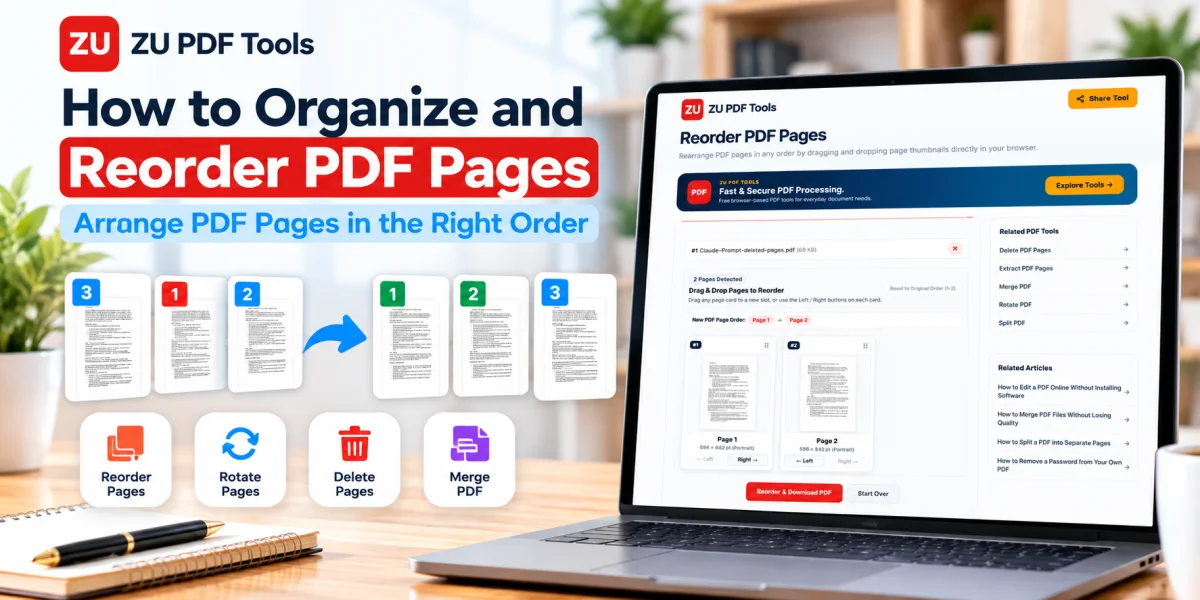
You've finished putting together an important PDF document. Everything is there, but something isn't quite right.
Page five appears before page three. A scanned form is upside down. The introduction is buried halfway through the file, and an unnecessary blank page sits between two important sections.
These might seem like small problems, but they can make a document difficult to follow.
Fortunately, you don't need to rebuild the entire PDF to fix its page order.
Whether you're organizing study notes, preparing a business report, or arranging scanned documents, a PDF page organizer can help you put everything in the right sequence.
In this guide, we'll explain how to reorder PDF pages, fix common page organization problems, and prepare a clean, professional-looking document.
Why Does PDF Page Order Matter?
A well-organized PDF helps readers find information quickly and understand it in the intended sequence.
Imagine sending a ten-page proposal to a client. If the pricing section appears before the project overview, the document may be confusing.
The same problem can occur with scanned assignments, contracts, invoices, and application forms.
Correct page order improves several aspects of a document.
Easier Reading
Readers can move naturally from one section to the next without searching for missing pages.
Better Document Presentation
An organized PDF looks more professional and is easier to review.
Fewer Submission Errors
Schools, employers, and application portals may expect documents in a particular order.
Arranging pages correctly helps you meet those requirements.
Simpler Printing
When pages are properly ordered, you can print the document without manually rearranging the paper afterward.
Better Collaboration
Colleagues and classmates can review a document more easily when its pages follow a logical structure.
What Does Reordering PDF Pages Mean?
Reordering a PDF means changing the sequence of its existing pages.
For example, suppose a document contains five pages in this order:
1 → 3 → 2 → 5 → 4
A page organizer lets you rearrange them into the correct sequence:
1 → 2 → 3 → 4 → 5
The main goal is to change where the pages appear without having to recreate their contents.
Reordering is different from editing text inside a PDF.
If you move page four to the beginning, its existing text, images, and graphics generally move with it.
However, complex PDF features such as bookmarks, links, forms, and digital signatures may need additional attention after a document is modified.
How to Reorder PDF Pages Online
One of the simplest ways to organize a PDF is to use a browser-based page reordering tool.
Here's the general process.
Step 1: Open the Reorder PDF Pages Tool
Visit the Reorder PDF Pages tool on ZU PDF Tools.
Step 2: Select Your PDF Document
Choose the PDF file you want to organize.
Make sure you're working with the correct document, especially if you have several versions saved on your device.
Step 3: Review the Page Previews
After the document loads, review the page thumbnails or previews provided by the tool.
These previews help you identify which pages need to be moved.
For example, you might notice that a scanned receipt is positioned before the invoice it belongs to.
Step 4: Arrange the Pages
Use the tool's available page-order controls to move pages into the desired sequence.
If drag-and-drop is supported, you can move page thumbnails into position.
Otherwise, use the available ordering controls.
Step 5: Check the New Sequence
Before saving, review the document from beginning to end.
Confirm that all pages appear in the correct order and that none are missing.
Step 6: Save the Reordered PDF
Apply the changes and download the resulting PDF.
Give the file a recognizable name, such as project-report-organized.pdf.
Step 7: Open and Verify the Document
Open the saved PDF in a PDF reader.
Check the page order, page orientation, and overall document appearance.
For important files, also test any bookmarks, links, forms, or other interactive elements.
How to Organize a PDF with Many Pages
Reordering a five-page document is usually straightforward.
Organizing a fifty-page report requires a little more planning.
The following approach can make the process easier.
Start with a Clear Structure
Before moving pages, decide how the finished document should be organized.
For example, a business report might follow this sequence:
Cover Page
Table of Contents
Executive Summary
Main Report
Supporting Charts
Appendices
Having a structure in mind reduces unnecessary rearranging.
Group Related Pages
Keep pages covering the same subject together.
For example, place a chart near the explanation that refers to it.
Check Section Transitions
After organizing a section, review the first and last pages to make sure the document flows naturally.
Save a Separate Copy
Keep the original PDF until you're satisfied with the reordered version.
This is particularly important for lengthy or important documents.
How to Remove Unnecessary PDF Pages
Sometimes a document doesn't just have pages in the wrong order. It also contains pages you don't need.
You might find:
Blank pages added during scanning.
Duplicate pages.
Outdated instructions.
Unnecessary cover sheets.
Extra pages from a combined document.
If you need to remove these pages, use a dedicated Delete PDF Pages tool.
Choose the pages you want to remove, review your selection, and save the updated document.
Always check the result afterward.
Deleting pages can affect page references, bookmarks, and the overall structure of a document.
For official records, make sure you're permitted to remove pages before making changes.
How to Rotate PDF Pages into the Correct Position
Scanned documents sometimes contain pages facing the wrong direction.
For example, one page may be upside down while the others are upright.
Instead of recreating the scan, you can use a Rotate PDF tool.
Depending on the tool, you may be able to rotate individual pages or multiple pages.
After rotation, open the finished PDF to confirm that the text and images display correctly.
Rotation and reordering are different operations, but they often work well together when organizing scanned documents.
How to Combine Multiple PDFs in the Right Order
Sometimes your pages aren't in one PDF yet.
You may have separate files for a cover page, report, charts, and supporting documents.
In this situation, a Merge PDF tool can help you combine them.
A practical workflow is:
Gather the PDF files you want to combine.
Decide the order in which they should appear.
Open the Merge PDF tool.
Add the files and review the available ordering options.
Combine the documents.
Check the resulting PDF.
If you discover a page-order mistake after merging, you can use a page reordering tool to correct it.
This approach is useful for assignments, business reports, applications, and document archives.
How to Split a PDF into Smaller Sections
Large PDFs sometimes contain several unrelated documents.
For example, you might have a single file containing three separate reports.
Rather than keeping everything together, you can divide the PDF into smaller documents.
Use the Split PDF tool to separate pages or page ranges according to the options available.
Splitting is useful when you need to:
Share only a particular section.
Create separate files for different recipients.
Organize records by topic.
Reduce the number of unrelated pages in one document.
If you want to learn more, read our guide on How to Split a PDF into Separate Pages.
Does Reordering PDF Pages Affect Quality?
Simply changing the order of existing PDF pages generally doesn't require reducing the resolution of photographs or re-rendering the document.
As a result, page reordering can often preserve the original visual quality.
However, the exact outcome depends on how the PDF application processes and saves the file.
Some applications may rewrite internal PDF structures.
For this reason, you should inspect the saved document, particularly when it contains complex graphics, interactive forms, or digital signatures.
If preserving an existing digital signature is essential, avoid modifying the signed PDF without checking the relevant requirements. Changing a signed document may invalidate its signature.
Common PDF Page Organization Problems
Pages Appear in the Wrong Order
This often happens when scanned files are combined or pages are imported incorrectly.
Review the thumbnails and rearrange them into the intended sequence.
A Page Is Missing
Check the original PDF to confirm whether the page was included.
If the page exists in a separate document, you may need to merge it into the correct position.
Some Pages Are Sideways
Use a page rotation tool to correct the orientation.
There Are Duplicate Pages
Identify the duplicates carefully and remove only the unnecessary copies.
The Document Is Too Long
Consider whether it would be easier to divide the file into smaller sections using a PDF splitting tool.
Bookmarks No Longer Point to the Right Pages
Reordering can affect navigation structures in some documents.
Review bookmarks and internal links after saving.
The PDF Contains a Digital Signature
Changing page order may invalidate the signature.
Preserve the signed original and follow the required document workflow.
Tips for Organizing Scanned PDF Documents
Scanned PDFs deserve extra attention because pages may have been captured individually.
Check Every Page
Make sure all scanned pages are readable and complete.
Arrange Pages Before Sharing
Put the pages in their correct reading order.
Correct Page Orientation
Rotate sideways or upside-down pages where necessary.
Remove Accidental Blank Pages
Blank pages can appear when scanning double-sided documents.
Remove them only if they aren't required.
Use Clear Filenames
Choose descriptive names such as meeting-notes-october.pdf or assignment-final.pdf.
Keep the Original Scan
Retaining the original can be useful if you later discover that a page was removed or reordered incorrectly.
Is It Safe to Reorder PDF Pages Online?
That depends on the tool and how it handles documents.
Some online PDF tools upload files to a remote server, while others process them locally in the browser.
Before using a service for confidential documents, review its privacy policy and file-handling practices.
For documents containing personal or sensitive information, choose a processing method appropriate to the information involved.
Also use a trusted device and confirm that the final file is saved in a secure location.
Frequently Asked Questions
Can I change the order of pages in a PDF?
Yes. A PDF page reordering tool can rearrange existing pages into a different sequence.
Can I reorder PDF pages without editing the text?
Yes. Page reordering changes the position of pages rather than directly editing the text inside them.
Will rearranging PDF pages reduce quality?
Not necessarily. Many tools can reorder existing pages without changing their visual resolution. Results depend on the application and document.
Can I reorder PDF pages on my phone?
Some mobile PDF applications and browser-based tools support page reordering. Available controls depend on the device and software.
How do I remove blank pages from a PDF?
Use a PDF page deletion tool to select and remove unwanted blank pages, then review the saved document.
Can I reorder a password-protected PDF?
It depends on the document's security settings and your authorization. You may need the appropriate password before making changes.
Can I reorder pages in a scanned PDF?
Yes. Scanned PDF pages can generally be rearranged like other PDF pages, provided the file allows modification.
Does reordering a PDF affect digital signatures?
It can. Modifying page order may invalidate an existing digital signature.
Final Thoughts
A PDF with properly organized pages is easier to read, review, print, and share.
Whether you're fixing a scanned document, preparing a school assignment, or organizing a business report, the most important step is to decide on a clear page sequence before making changes.
Use a page reordering tool to arrange existing pages, a rotation tool to correct orientation, and a deletion tool to remove unnecessary pages.
Keep the original document until you've checked the final result.
If you're ready to organize your document, explore the Reorder PDF Pages tool on ZU PDF Tools and prepare a cleaner, easier-to-follow PDF.