Imagine receiving a 75-page PDF report when you only need three pages from the middle.
You could send the entire document to someone and ask them to find the relevant section. But that creates unnecessary work, and it may reveal information the recipient doesn't need.
A better approach is to extract the specific pages and save them as a separate PDF.
This is useful for students, office workers, freelancers, teachers, and anyone who regularly handles digital documents.
The good news is that you don't need to recreate the pages or copy their contents into another application.
In this guide, we'll explain what PDF page extraction means, how to select individual pages or page ranges, and what to check before sharing the resulting file.
What Does It Mean to Extract Pages from a PDF?
Extracting pages means taking selected pages from an existing PDF and creating a new PDF containing those pages.
For example, suppose you have a 20-page document but only need pages 4, 7, and 12.
A PDF extraction tool can create a new document containing those three pages.
The original PDF can remain unchanged.
This is different from deleting pages, where you remove unwanted pages from a document.
With extraction, you're choosing what to keep in a separate file rather than what to remove.
Why Would You Need to Extract PDF Pages?
There are several everyday situations where extracting pages can save time.
Sharing Part of a Report
A client may only need the project summary and pricing section from a longer report.
Instead of sending the complete file, you can create a PDF containing only the relevant pages.
Preparing School Assignments
Students sometimes need to submit selected pages from lecture notes, research documents, or scanned assignments.
Extracting those pages makes it easier to prepare a focused submission.
Organizing Business Documents
A large PDF may contain several invoices, forms, or supporting documents.
You can extract individual sections and store them in separate folders.
Saving Important Reference Pages
You might want to keep a few useful pages from a manual or guide for quick reference.
Reducing Unnecessary Content
When a recipient only needs a particular section, sending fewer pages can make the document easier to review.
However, extracting pages doesn't always reduce the file size proportionally, especially if the PDF contains shared resources or large embedded images.
How to Extract Specific Pages from a PDF Online
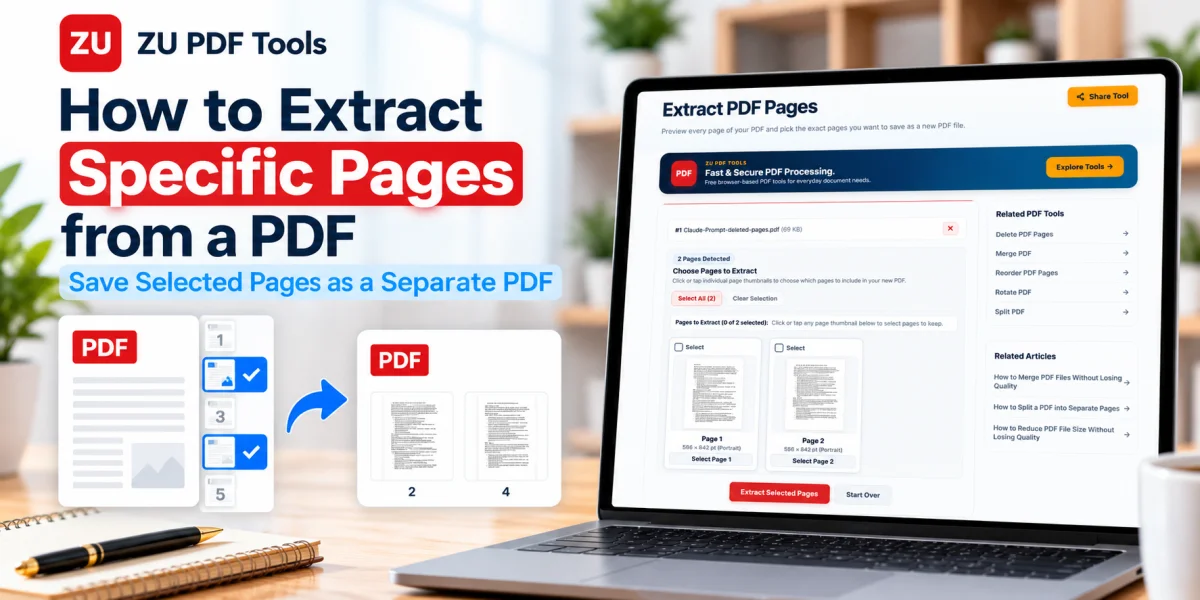
A browser-based extraction tool lets you select the pages you need and create a separate document.
Here's how the process generally works.
Step 1: Open the Extract Pages Tool
Visit the Extract PDF Pages tool on ZU PDF Tools.
Step 2: Select Your PDF File
Choose the PDF containing the pages you want to extract.
Check the filename before proceeding, particularly if you have several similar documents.
Step 3: Review the Page Previews
After the file loads, look through the available page thumbnails.
Page previews can help you identify the exact pages you need without relying only on page numbers.
Step 4: Select the Pages You Want
Choose the individual pages you want to include in the new document.
For example, you might select pages 2, 5, and 9.
If the tool supports page ranges, you may also be able to select a continuous group of pages.
Use the selection controls available in the interface.
Step 5: Check Your Selection
Before extracting, review the selected pages carefully.
Make sure you haven't included unrelated or confidential information.
Step 6: Extract the Selected Pages
Start the extraction process.
The tool will create a separate PDF containing the selected pages according to its supported options.
Step 7: Download the New PDF
Save the resulting file to your device.
Choose a descriptive filename, such as project-summary-pages.pdf.
Step 8: Open and Verify the File
Open the downloaded PDF in a compatible reader.
Confirm that all intended pages are present, readable, and arranged in the correct order.
Keep the original document until you're satisfied with the extracted copy.
How to Extract a Single Page from a PDF
Sometimes you only need one page.
For example, you might have a multi-page document containing an individual certificate, receipt, or form.
Instead of sharing the entire PDF, you can create a separate file containing just that page.
Open the extraction tool, select the original PDF, and choose the required page.
Review the selection before generating the new document.
After downloading, open the one-page PDF to make sure it contains the correct information.
This is particularly useful when you're sending a specific document to someone who doesn't need the rest of the file.
How to Extract Multiple Non-Consecutive Pages
Not every document has the pages you need grouped together.
Suppose you want pages 3, 8, 11, and 16 from a larger report.
These are non-consecutive pages because they don't appear next to one another.
If your PDF tool supports individual page selection, you can select each required page and create a new PDF.
Review the output order carefully.
Some applications preserve the original page sequence, while others may provide options for arranging selected pages.
If you need a different sequence, you can use a Reorder PDF Pages tool afterward.
How to Extract a Range of PDF Pages
A page range is a continuous section of a document.
For example, pages 10 through 18 form a range.
Extracting a range is useful when you need an entire chapter, section, or group of related pages.
Depending on the application, you may select the range by entering page numbers or choosing thumbnails.
Before saving, confirm that both the first and last pages of the range are correct.
This helps prevent accidentally leaving out an important page.
Extract PDF Pages vs. Split PDF: What's the Difference?
Page extraction and PDF splitting are closely related, but they serve slightly different purposes.
Extract PDF Pages
Extraction focuses on selecting particular pages and saving them as a separate PDF.
For example, you might extract pages 2, 7, and 12 from a 30-page report.
Split PDF
Splitting divides a larger PDF into separate documents or sections.
For example, you might divide a 30-page PDF into three files containing ten pages each.
Some PDF tools offer overlapping features, so the distinction depends on the software.
If you want to divide a document into multiple sections, read our guide on How to Split a PDF into Separate Pages.
Does Extracting PDF Pages Reduce Quality?
Extracting existing PDF pages often preserves their original appearance because the pages don't necessarily need to be converted into images.
This means text, graphics, and photographs may retain their original quality.
However, the exact result depends on the tool and the structure of the PDF.
Some applications may rewrite internal document objects when creating the new file.
For important documents, check the extracted pages carefully.
Pay attention to:
Text clarity and formatting.
Images and diagrams.
Page orientation.
Hyperlinks and bookmarks.
Interactive forms.
Digital signatures, if present.
Extracting pages from a digitally signed PDF may invalidate the signature or remove its meaningful verification context.
Preserve the original signed document whenever signature validity matters.
Can You Extract Pages from a Scanned PDF?
Yes.
A scanned PDF usually contains page images rather than ordinary editable text.
Even though the text may not be directly selectable, the pages can often still be extracted into a new PDF.
For example, suppose you scanned ten pages of handwritten notes but only need the last two.
You can select those pages and save them separately.
The extracted pages will generally remain scanned images unless another process, such as optical character recognition (OCR), is applied.
Page extraction alone doesn't automatically turn scanned text into editable text.
How to Extract Pages Without Sharing the Entire Document
One benefit of page extraction is that you can share only the relevant portion of a larger document.
For example, a report may contain internal notes, personal details, and information intended for different recipients.
Creating a separate PDF with only the authorized pages can reduce unnecessary disclosure.
However, page extraction is not the same as secure redaction.
If a selected page contains sensitive information, simply extracting it won't remove that information.
Also, some PDF files may contain metadata, attachments, or other embedded content.
Before sharing confidential material, inspect the resulting document and use a proper redaction process when necessary.
Is It Safe to Extract PDF Pages Online?
That depends on how the tool handles uploaded documents.
Some services process files on remote servers.
Others perform supported PDF operations locally inside your browser.
Before working with confidential documents, review the tool's privacy and data-handling information.
The ZU PDF Tools extraction workflow is designed for browser-based document processing.
For sensitive files, use a trusted device and make sure the resulting document is stored securely.
Avoid sharing extracted pages with people who aren't authorized to receive them.
Common Problems When Extracting PDF Pages
The Wrong Pages Were Selected
Review the thumbnails and page numbers before starting the extraction.
Remember that printed page numbers inside a document may not match the PDF viewer's page count.
A Page Is Missing from the Output
Check your selection and confirm that the extraction completed successfully.
The Pages Are in the Wrong Order
Use a PDF reordering tool to arrange them as needed.
The Extracted File Is Larger Than Expected
PDFs may contain embedded fonts, images, and other resources.
A smaller page count doesn't always mean a proportionally smaller file.
The Document Is Password-Protected
You may need the correct password and permission to modify the PDF.
Bookmarks or Links No Longer Work
Some navigation elements refer to pages outside the extracted section.
Check internal links and bookmarks after extraction.
A Digital Signature Is No Longer Valid
Extracting pages changes the document structure and may invalidate existing signatures.
Keep the original signed PDF for verification.
Tips for Managing Extracted PDF Pages
Use Descriptive Filenames
Instead of naming every file document.pdf, choose names that describe the contents.
For example:
invoice-march.pdftraining-guide-chapter-2.pdfproject-report-summary.pdf
Keep the Original PDF
Store the original document until you've verified the extracted version.
Check the Page Order
Make sure the pages follow a logical sequence.
Avoid Unnecessary Copies
Too many versions can make document management confusing.
Review Before Sharing
Open the finished file and check for unintended information.
Organize Files into Folders
Group related PDFs by project, client, subject, or date.
These small habits can make managing digital documents much easier.
Frequently Asked Questions
Can I extract just one page from a PDF?
Yes. Many PDF extraction tools allow you to select a single page and save it as a separate PDF.
Can I extract multiple pages at once?
Yes. Depending on the tool, you can select multiple individual pages or page ranges.
Will extracting pages change the original PDF?
Usually, extraction creates a new file and leaves the original document unchanged. Confirm the behavior of your chosen application.
Can I extract pages from a scanned PDF?
Yes. Scanned pages can generally be extracted, although they may remain image-based rather than editable text.
Is extracting pages the same as deleting pages?
No. Extraction creates a separate file containing selected pages, while deletion removes unwanted pages from a document.
Can I extract pages from a password-protected PDF?
That depends on the document's security settings and whether you have the required credentials and authorization.
Does page extraction reduce PDF quality?
Not necessarily. Many tools preserve the original page appearance, but results depend on the PDF and the application.
Can I extract PDF pages on my phone?
Some mobile applications and browser-based PDF tools support page extraction. Available features depend on the device and software.
Final Thoughts
Extracting specific pages from a PDF is a practical way to create smaller, more focused documents.
Whether you're sharing a report section, saving important reference pages, or organizing scanned files, page extraction can help you work more efficiently.
The most important steps are selecting the correct pages, checking the output, and keeping the original document until you're satisfied.
Remember that extracted pages may still contain confidential information, so review them carefully before sharing.
If you're ready to create a separate PDF from selected pages, try the Extract PDF Pages tool on ZU PDF Tools.
For related tasks, you can also explore Reorder PDF Pages, Split PDF, and Merge PDF.