You've received a 60-page PDF, but you only need three pages from it.
Maybe it's a textbook chapter, a business report, a collection of scanned documents, or an application form with several sections. Sending the entire file would be inconvenient, and printing the pages just to scan them again would be a waste of time.
Fortunately, you can split a PDF into smaller documents without rebuilding it from scratch.
Whether you want to save every page separately, extract a specific page range, or remove sections you don't need, understanding how PDF splitting works can make document management much easier.
This guide explains the different ways to split a PDF, how to choose the right method, and what to check before sharing the resulting files.
What Does Splitting a PDF Mean?
Splitting a PDF means dividing an existing PDF document into two or more smaller PDF files.
For example, suppose you have a document called annual-report.pdf containing 40 pages.
You might want to create:
report-section-1.pdfcontaining pages 1–10report-section-2.pdfcontaining pages 11–25report-section-3.pdfcontaining pages 26–40
Alternatively, you might want to save each of the 40 pages as an individual PDF.
Both approaches involve splitting, but they produce different results.
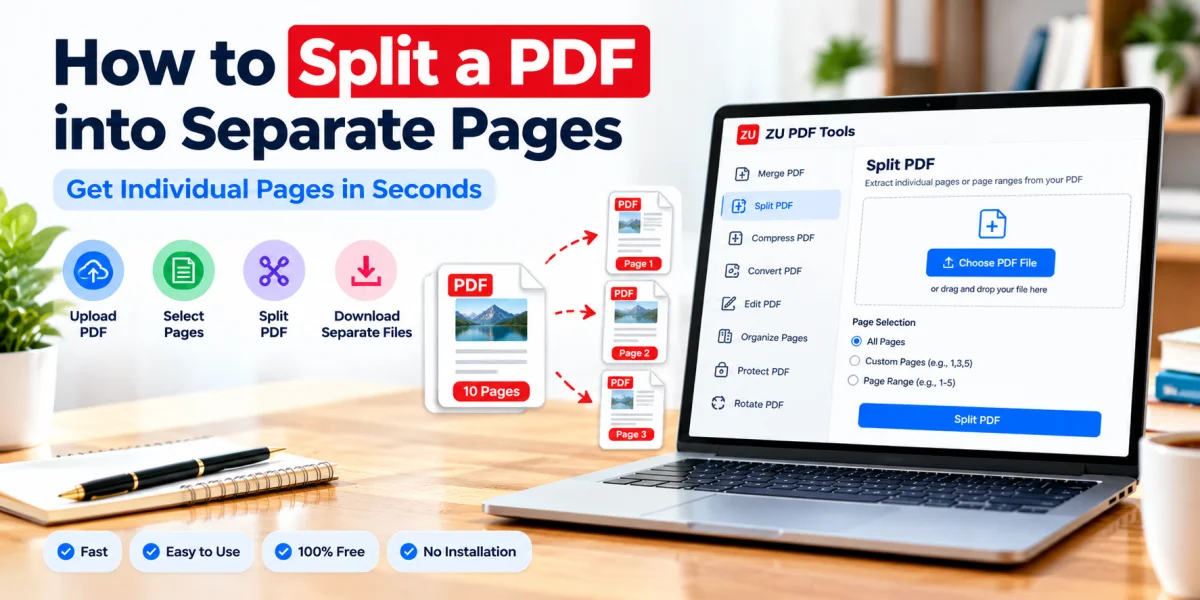
Splitting every page into a separate file
This method creates one PDF for each original page.
It's useful when individual pages need to be shared, reviewed, or stored separately.
Splitting a document into page ranges
This method divides a document into groups of pages.
For example, a 30-page manual could become three separate 10-page PDFs.
Extracting selected pages
Sometimes you don't need to divide the entire document. You only want a few pages.
Extracting pages lets you create a new PDF containing selected pages from the original document.
If your goal is to keep only specific pages, an extraction tool may be more convenient than splitting the entire file.
Why Would You Need to Split a PDF?
There are several everyday situations where splitting a PDF is helpful.
Sharing only relevant information
Imagine your colleague needs the financial summary from a long business report.
Instead of sending the complete document, you can create a smaller PDF containing only the relevant section.
This makes the information easier to find and review.
Organizing scanned documents
A scanner may save multiple documents into one PDF.
You can separate invoices, receipts, forms, or letters into individual files for easier organization.
Preparing school assignments
Teachers and students sometimes need to submit specific chapters, exercises, or supporting pages rather than an entire document.
Splitting helps keep submissions focused.
Managing large files
Dividing a long document into smaller sections can make it easier to navigate and share.
However, splitting does not guarantee that the total file size will decrease, because shared resources and embedded content may be duplicated across output files.
Preparing documents for different recipients
You may need to send different sections of a document to different people.
Before doing so, check that each output file contains only information the recipient is authorized to receive.
How to Split a PDF Online: Step by Step
You don't necessarily need to install desktop software to split a PDF.
A browser-based tool can help you separate pages directly from your device.
Step 1: Open the Split PDF tool
Visit the Split PDF tool on ZU PDF Tools.
Choose the document you want to divide.
Step 2: Select your PDF file
Use the file selection option to open the PDF from your computer or mobile device.
Wait for the tool to load the document.
For a large file, this may take longer depending on the number of pages and your device's performance.
Step 3: Choose how you want to split the document
Look at the splitting options available in the tool.
Depending on its features, you may be able to divide the PDF into individual pages or selected page ranges.
If you only need a few specific pages, consider using the Extract Pages tool instead.
Step 4: Select the pages or ranges
Choose the pages you want to separate.
For example, a page range such as 5–12 usually means pages 5 through 12, including both endpoints.
Pay attention to the page numbers displayed by the tool, especially if the PDF contains a cover page or introductory pages.
The printed page numbers inside a document may differ from the PDF viewer's page positions.
Step 5: Start the splitting process
Once you've confirmed the selection, start the split operation.
Allow the tool to finish processing the document.
The time required depends on the file's size, structure, and the capabilities of your device.
Step 6: Download the resulting files
Save the new PDF files to your device.
If the tool provides several output documents in a ZIP archive, extract the archive before reviewing the individual PDFs.
Use descriptive filenames so you can identify each section later.
Step 7: Check the output
Open the resulting PDFs and verify that:
The correct pages were included
No important pages are missing
Text remains readable
Images and diagrams display correctly
Page orientation is preserved
Each output file opens successfully
Keep the original PDF until you're satisfied with the results.
Split PDF vs. Extract PDF Pages: What's the Difference?
These two operations are closely related, but they aren't always interchangeable.
Split PDF is generally used to divide a larger document into multiple smaller documents.
Extract Pages is generally used to create a new PDF containing selected pages from an existing document.
For example, imagine you have a 100-page training manual.
If you want ten separate documents containing ten pages each, splitting is a natural choice.
If you only want pages 35–42, extracting those pages is usually more direct.
Both operations can be useful, depending on your goal.
How to Split a PDF Without Losing Quality
Splitting a PDF does not automatically reduce the quality of its pages.
A PDF may contain selectable text, vector graphics, embedded fonts, and high-resolution images.
When a splitting tool preserves the original page content, these elements can remain intact.
However, results vary depending on how the tool processes the document.
To reduce the risk of quality loss:
Use the original PDF
Whenever possible, start with the original document rather than a screenshot or a low-resolution conversion.
Avoid unnecessary image conversion
Converting pages into JPG files and rebuilding them as PDFs may reduce clarity and remove selectable text.
For ordinary page splitting, direct PDF processing is preferable.
Keep the original page dimensions
Unless you specifically need to resize pages, preserve their original dimensions.
Inspect small text and graphics
After splitting, zoom in on pages containing fine print, tables, charts, or diagrams.
Keep a backup
Don't overwrite or delete the original document until you've verified the new files.
Can You Split a Scanned PDF?
Yes. A scanned PDF can usually be split into separate pages just like a digitally generated PDF.
The main difference is how the page content is stored.
A digital PDF often contains selectable text, while a scanned PDF may contain images of printed pages.
Splitting a scanned PDF doesn't automatically convert those images into editable or searchable text.
That generally requires optical character recognition, or OCR, which is a separate process.
If the original scan is blurry, splitting won't restore the missing detail.
How to Organize Your PDF Files After Splitting
Once you've separated the document, a few simple steps can make the files easier to manage.
Use meaningful filenames
Instead of keeping names like split_1.pdf and split_2.pdf, consider names such as:
training-introduction.pdftraining-safety-guidelines.pdftraining-exercises.pdf
Clear filenames are especially helpful when documents will be shared with other people.
Keep related documents together
Create a dedicated folder for files that belong to the same project.
This prevents individual pages from getting mixed up with unrelated documents.
Review the page order
If the pages are in the wrong sequence, a Reorder PDF Pages tool may help.
Remove unnecessary pages
If your goal is to remove blank or unwanted pages rather than create several files, consider using a Delete Pages tool.
Merge files again when needed
If you later decide that several sections belong together, you can use a Merge PDF tool to combine them.
Common Problems When Splitting PDFs
The tool won't open my PDF
First, confirm that the file is a valid PDF and isn't damaged.
Try opening it in a standard PDF viewer.
If it opens normally there but not in the splitting tool, the PDF may contain features that the tool doesn't support.
Some pages are missing
Check the selected page ranges and compare the output with the original document.
Remember that page numbers printed inside a document may not match their positions in the PDF.
The output files are larger than expected
Splitting doesn't necessarily reduce the total size of a document.
Some PDF files contain shared fonts, images, or other resources that may be included in more than one output file.
If file size is important, inspect the results before considering a separate compression step.
A password-protected PDF cannot be split
Some protected documents restrict page extraction or modification.
If you're authorized to work with the document, you may need to provide the correct password or use an appropriate permitted workflow.
The pages look blurry
Compare the output with the original PDF.
If the original is already blurry, splitting won't improve it.
If the quality changed during processing, try a method that preserves the original PDF page content rather than converting pages into images.
Is It Safe to Split PDF Files Online?
That depends on how the service handles your documents.
Some tools upload files to remote servers, while others process PDFs within your browser.
Before using an online tool with confidential documents, review its privacy policy and understand how your files are processed.
Be especially careful with financial records, personal identification documents, medical information, and confidential business files.
Also remember that extracting only certain pages doesn't necessarily remove every possible trace of information stored elsewhere in a complex PDF. For highly sensitive documents, use a workflow specifically designed for secure information removal.
Frequently Asked Questions
Can I split a PDF into individual pages?
Yes. Many PDF splitting tools can create separate PDF files from individual pages. The exact options depend on the tool.
Can I split a PDF without installing software?
Yes. Browser-based PDF tools can perform page splitting without requiring a separate desktop application.
Does splitting a PDF reduce quality?
Not necessarily. A tool that preserves the original page content can maintain text clarity, images, and page formatting. Always inspect the output.
Can I split a PDF on my phone?
Many browser-based tools support mobile devices, although selecting numerous pages may be easier on a larger screen.
Can I extract just one page from a PDF?
Yes. A page extraction tool can create a new PDF containing a selected page.
Can I split a PDF into equal parts?
Some tools support dividing a PDF into equal page ranges. If that option isn't available, you may need to select the ranges manually.
Can I split a password-protected PDF?
It depends on the document's permissions and the tool's capabilities. Only process protected files when you have the necessary authorization.
Final Thoughts
Splitting a PDF is a practical way to turn a long document into smaller, more manageable files.
Whether you're organizing scanned records, preparing an assignment, or sharing selected sections of a report, the key is choosing the right method.
Use splitting when you want multiple smaller documents. Use page extraction when you only need certain pages.
For the best results, start with a good-quality PDF, preserve the original page content whenever possible, and check every output file before sharing it.
Ready to get started? Try the ZU PDF Tools Split PDF tool to organize your document into smaller sections.
If you only need a few specific pages rather than dividing the entire file, read our companion tutorial on How to Extract Specific Pages from a PDF.