Have you ever opened a PDF and found that one page is sideways while the next is upside down?
Or perhaps you've tried printing a document only to discover that its pages are the wrong size for your paper.
These problems are common with scanned documents, downloaded forms, presentations, and files created using different applications.
Fortunately, you don't have to rebuild the document from scratch.
Rotating PDF pages can correct their orientation, while resizing can help you prepare pages for printing, sharing, or consistent formatting.
In this guide, we'll explain how both operations work, when to use each one, and what to check before saving your document.
What's the Difference Between Rotating and Resizing a PDF?
Although both operations change how a PDF page appears, they solve different problems.
Rotating PDF Pages
Rotation changes the orientation of a page.
For example, a page that appears sideways can be turned 90 degrees so its content is easier to read.
Common rotation angles include:
90° clockwise: Turns the page a quarter-turn to the right.
90° counterclockwise: Turns the page a quarter-turn to the left.
180°: Turns an upside-down page right-side up.
270°: Produces the same orientation as a 90° counterclockwise rotation.
Rotating a page generally changes its orientation without requiring you to recreate its text or images.
Resizing PDF Pages
Resizing changes the physical dimensions of a PDF page.
For example, you might want to change a document from US Letter dimensions to A4 or make several pages consistent in size.
Depending on the tool, resizing may scale the content, adjust the page boundaries, or reposition the existing content.
That's why it's important to preview the result before printing or sharing it.
Why Would You Need to Rotate PDF Pages?
There are several situations where PDF rotation is helpful.
Correcting Scanned Documents
A document scanner or mobile scanning application may save pages in the wrong orientation.
Rotating the affected pages can make the document easier to read.
Fixing Sideways Pages
Some PDFs contain a mixture of portrait and landscape pages.
If a page appears sideways unintentionally, you can rotate it to the correct orientation.
Preparing Documents for Presentation
When sharing a PDF during a meeting or online class, properly oriented pages make it easier for viewers to follow along.
Organizing Multi-Page Files
A document assembled from different sources may contain pages facing different directions.
Rotation helps make the finished document more consistent.
How to Rotate PDF Pages Online
You can rotate PDF pages using a browser-based tool without manually rebuilding the document.
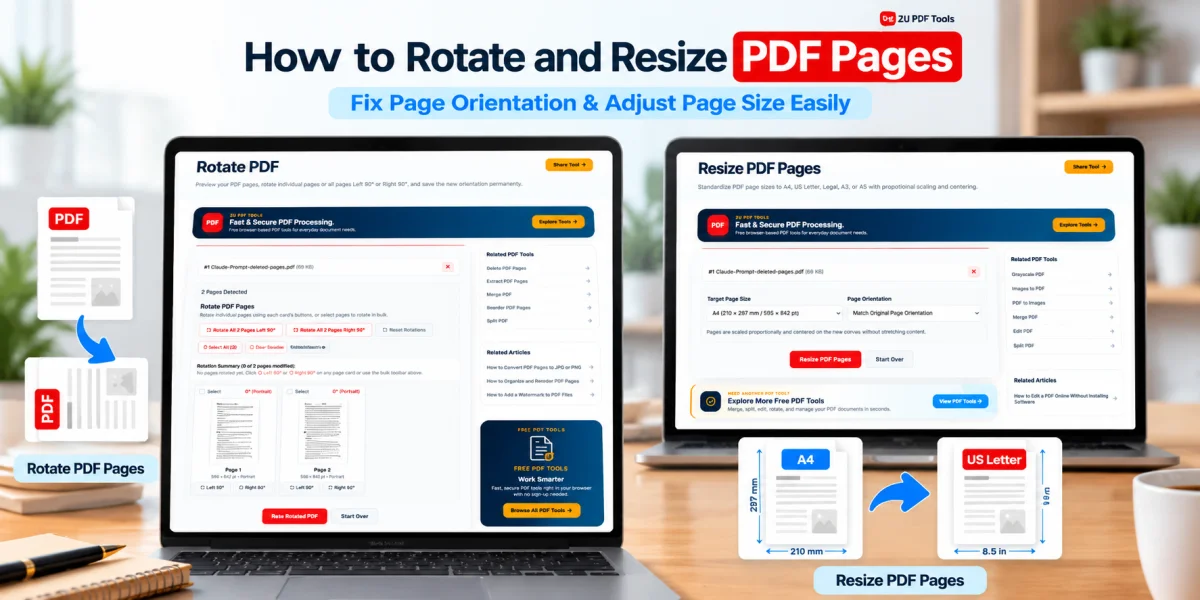
Step 1: Open the Rotate PDF Tool
Visit Rotate PDF on ZU PDF Tools.
Step 2: Choose Your PDF File
Select the PDF you want to correct.
Make sure you're working with the right document, especially if you have several similarly named files.
Step 3: Review the Pages
Look through the page previews to identify which pages need rotation.
Some documents contain only one incorrectly oriented page, while others may need several adjustments.
Step 4: Select the Rotation
Choose the appropriate rotation direction or angle using the available controls.
For a sideways page, a 90-degree rotation is often enough.
For an upside-down page, a 180-degree rotation may be appropriate.
Step 5: Apply the Rotation
Use the tool's rotation controls to process the selected pages.
Check the preview if the interface provides one.
Step 6: Download the Updated PDF
Save the corrected document to your device.
Use a descriptive filename such as scanned-document-corrected.pdf.
Step 7: Verify the Result
Open the downloaded PDF and review each page.
Confirm that the text, images, and page orientation look correct.
How to Rotate Only One Page in a PDF
Sometimes a document contains just one sideways page.
For example, a 15-page report might have a landscape chart on page 8 that was saved incorrectly.
Rotating the entire document would create more problems.
Instead, use a tool that supports individual page selection.
Choose the affected page, apply the appropriate rotation, and leave the remaining pages unchanged.
After saving, check both the corrected page and the surrounding pages to confirm the document still reads naturally.
How to Rotate Multiple PDF Pages
When several pages need the same correction, rotating them together can save time.
For example, a batch of scanned forms might all appear upside down.
If the tool supports selecting multiple pages, choose the affected pages and apply the same rotation.
For documents containing mixed orientations, review each page individually.
Don't assume every landscape page is incorrect. Some charts, diagrams, and tables are intentionally arranged horizontally.
Why Would You Need to Resize PDF Pages?
Page resizing is useful when documents have inconsistent or unsuitable dimensions.
Preparing PDFs for Printing
A document created for one paper size may not fit another paper size properly.
Resizing can help prepare the pages for the paper available in your printer.
Standardizing Mixed Documents
A PDF assembled from several sources may contain pages with different dimensions.
Resizing can help create a more consistent document.
Preparing Forms and Handouts
Some forms and handouts need to match specific paper dimensions before printing or distribution.
Adjusting Oversized Pages
A PDF containing unusually large pages may be inconvenient to print or review.
Changing its dimensions may make it more practical.
How to Resize PDF Pages Online
Here's a general workflow for resizing PDF pages.
Step 1: Open the Resize PDF Pages Tool
Visit Resize PDF Pages on ZU PDF Tools.
Step 2: Upload or Select Your PDF
Choose the document whose page dimensions you want to change.
Step 3: Check the Existing Page Size
If the tool displays the current dimensions, review them before making changes.
This helps you understand whether the document is already close to your intended paper size.
Step 4: Choose the Target Dimensions
Select a supported paper size or enter custom dimensions if that option is available.
For example, you may want A4 for an international business document or US Letter for a document intended for a US office.
Step 5: Review the Available Scaling Options
Depending on the tool, you may be able to adjust how the content fits the new page dimensions.
Pay attention to whether the content is scaled, centered, or placed inside new page boundaries.
Step 6: Apply the Resize Operation
Process the PDF using your selected settings.
Step 7: Download and Inspect the Result
Open the resized PDF and check its layout.
Make sure no text, signatures, tables, or images have been cut off.
If you're preparing the file for printing, test one page before printing the entire document.
Common PDF Paper Sizes
Understanding standard paper dimensions makes resizing easier.
| Paper Size | Dimensions |
|---|---|
| A4 | 210 × 297 mm |
| A5 | 148 × 210 mm |
| A3 | 297 × 420 mm |
| US Letter | 8.5 × 11 inches |
| US Legal | 8.5 × 14 inches |
A4 is commonly used for business documents, reports, and forms in many countries.
US Letter is widely used in the United States.
US Legal is longer than US Letter and is sometimes used for legal or administrative documents.
Choose the size required by the person or organization receiving your document.
Does Rotating a PDF Affect Its Quality?
Rotating a PDF page usually doesn't require converting the entire page into an image.
As a result, the original text and graphics can often retain their appearance and clarity.
However, the result depends on how the PDF is structured and how the tool performs the operation.
For important documents, always inspect the downloaded file.
Pay particular attention to pages containing annotations, interactive fields, or unusual layouts.
Does Resizing PDF Pages Reduce Quality?
Not necessarily.
Changing the page dimensions doesn't automatically mean the text or images will become blurry.
Vector text and graphics can often be scaled while remaining sharp.
Raster images, however, have a fixed pixel resolution. Enlarging them too much may make them appear less clear.
Resizing can also affect margins and page layout if the original content doesn't fit the new dimensions.
For the best result, choose an appropriate target size and inspect the output before printing.
Rotate PDF vs. Resize PDF vs. Crop PDF
These operations may seem similar, but they have different purposes.
Rotate PDF
Changes the orientation of a page.
Use it when content appears sideways or upside down.
Resize PDF
Changes the dimensions of the page.
Use it when you need a different paper size or more consistent page dimensions.
Crop PDF
Adjusts the visible page area.
Use it when you want to remove unwanted margins or focus on a particular part of the page.
Cropping may hide content rather than permanently deleting it, depending on how the PDF is processed.
If your goal is to remove extra margins, explore the Crop PDF tool.
Common Problems When Rotating or Resizing PDFs
The Page Is Still Sideways
Try rotating the page in the opposite direction or choosing the correct angle.
The Entire Document Rotated
If you only intended to rotate certain pages, check the page-selection settings.
Text Is Cut Off After Resizing
The content may not fit within the new page boundaries.
Try a different size or scaling option.
Images Look Blurry
This may happen when low-resolution images are enlarged.
Avoid unnecessary upscaling when possible.
The Printed Document Has Unexpected Margins
Printer settings can add margins or scale pages independently of the PDF's actual dimensions.
Review your printer's paper size and scaling options.
A PDF Form Behaves Differently After Editing
Some interactive documents may contain fields or scripts that don't behave as expected after processing.
Test the finished file before distributing it.
Tips for Better PDF Page Formatting
Keep an original copy. Save the source document before making changes.
Check page orientation first. Correct sideways pages before deciding whether resizing is necessary.
Use standard dimensions where appropriate. A4 and US Letter are common choices, but follow the recipient's requirements.
Preview every page. Mixed documents can contain different layouts.
Avoid unnecessary resizing. If a document already prints correctly, changing its dimensions may not help.
Check important content. Make sure signatures, footnotes, tables, and page numbers remain visible.
Test printing. For large print jobs, print one sample page first.
These habits can prevent formatting mistakes and reduce the need to repeat the process.
Frequently Asked Questions
Can I rotate a PDF without changing its text?
Yes. Many PDF tools can change page orientation without requiring the text to be retyped or recreated.
Can I rotate only selected pages?
Yes, if the tool supports individual page selection. This is useful for PDFs containing a mixture of correctly and incorrectly oriented pages.
Can I resize a PDF to A4?
Yes. Many PDF resizing tools support A4 dimensions or custom page sizes.
Is resizing a PDF the same as compressing it?
No. Resizing changes page dimensions, while compression aims to reduce file size.
Can I rotate scanned PDF pages?
Yes. Scanned pages can generally be rotated just like other PDF pages.
Will resizing a PDF make its file size smaller?
Not necessarily. Changing page dimensions doesn't guarantee a smaller file size.
Can I rotate and resize a PDF on my phone?
Many mobile applications and browser-based PDF tools support these operations, although available features depend on the device and software.
Will rotation or resizing affect digital signatures?
Modifying a signed PDF can invalidate its digital signature. Keep the original signed document when signature verification is important.
Final Thoughts
Rotating and resizing PDF pages are two simple but useful ways to improve document presentation.
Rotation helps correct sideways or upside-down pages, while resizing helps adjust page dimensions for printing and sharing.
The key is understanding which operation solves your particular problem.
If the page faces the wrong direction, rotate it.
If the paper dimensions are unsuitable, resize it.
And if you only need to adjust the visible margins, cropping may be a better choice.
To get started, explore Rotate PDF and Resize PDF Pages on ZU PDF Tools.
Always review your finished PDF before sharing or printing it.
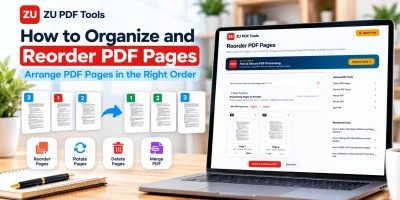
Need to rearrange page sequence or remove extra blank pages as well? Check out our guide on How to Organize and Reorder PDF Pages.