You've finished preparing a set of documents, but there's one problem: they're scattered across several PDF files.
Maybe your job application includes a resume, cover letter, and certificates. Perhaps you've scanned a report in separate batches, or a client has asked you to send several invoices as one document.
Sending everything separately isn't always convenient. Files can arrive out of order, attachments can be overlooked, and keeping track of multiple versions becomes frustrating.
Merging PDFs solves that problem by combining multiple documents into a single file. But if your documents contain detailed images, charts, small text, or different page sizes, you might wonder whether combining them will affect their quality.
The good news is that merging PDF files doesn't automatically reduce their quality. With a suitable tool and a few basic checks, you can create one organized PDF while preserving the appearance of the original pages.
Here's how.
What Does It Mean to Merge PDF Files?
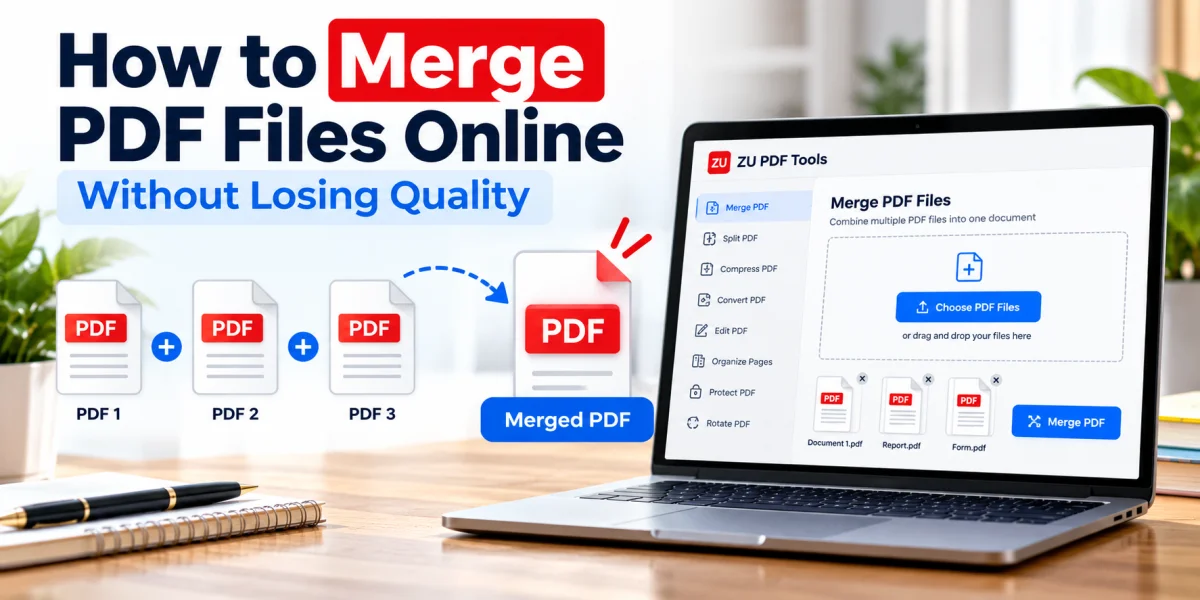
Merging PDFs means joining two or more PDF documents into one file.
For example, imagine you have three documents:
cover-letter.pdfresume.pdfcertificates.pdf
After merging them, you could save the result as job-application.pdf.
The combined document contains the pages from all three original files, arranged in the order you choose.
Unlike copying content into a word processor, a PDF merge operation can preserve the original pages and their existing layout.
However, the exact result depends on the software and the structure of your source files.
Does Merging PDFs Reduce Quality?
Not necessarily.
A PDF can contain several kinds of content, including selectable text, embedded fonts, vector graphics, photographs, and scanned images.
A well-designed merging tool may combine the existing PDF page content without converting every page into a new image.
When that happens, text can remain sharp, vector graphics can stay scalable, and embedded images may retain their original resolution.
Quality problems are more likely when a tool:
Converts PDF pages into low-resolution images before merging
Recompresses images aggressively
Changes page dimensions unexpectedly
Replaces or fails to preserve embedded fonts
Alters transparency or complex graphics
Rebuilds the pages through a print-to-PDF process
The important distinction: Merging documents and compressing documents are different operations. You don't need to compress a PDF simply because you're combining multiple files.
How to Merge PDF Files Online: Step by Step
If you want to combine several PDFs without installing desktop software, you can use a browser-based merging tool.
Step 1: Open a PDF merging tool
Visit the Merge PDF tool on ZU PDF Tools.
Choose a tool that lets you select multiple PDFs and review their order before creating the final document.
Step 2: Select your PDF files
Choose the documents you want to combine from your device.
Before proceeding, check that you're using the latest versions of each file.
For example, if you have both report-final.pdf and report-final-revised.pdf, make sure you select the correct one.
Step 3: Arrange the files in the correct order
The order of your documents matters.
For a job application, you might place the cover letter first, followed by your resume and supporting certificates.
For a business report, you might start with the summary, continue with the main report, and place supporting documents at the end.
Use the available ordering controls in your chosen tool to arrange the PDFs before merging.
If you need to change individual page positions afterward, a dedicated Reorder PDF Pages tool may help.
Step 4: Merge the documents
Once the files are arranged correctly, start the merge operation.
Processing time can vary depending on the number of pages, document complexity, file sizes, and your device.
Avoid closing the browser tab while the tool is working.
Step 5: Download the combined PDF
When the merge is complete, download the resulting document.
Give it a meaningful filename, such as project-documents-combined.pdf.
A descriptive filename makes it easier to recognize the document later.
Step 6: Check the final document
Open the merged PDF and review it carefully.
Check that:
Every expected page is included
Pages appear in the correct order
Text remains readable
Images and diagrams look clear
No pages have been cropped
Portrait and landscape pages display correctly
The final PDF opens in a standard PDF viewer
This final review is particularly important for documents you plan to submit, print, or share professionally.
7 Practical Tips to Preserve PDF Quality
Most PDF merging tasks are straightforward, but these habits can help prevent problems.
1. Start with the best available source files
A merging tool cannot restore detail that was missing from the original document.
If a scanned page is blurry before merging, it will generally remain blurry afterward.
Whenever possible, use the original exported PDF instead of a screenshot or a low-quality scan.
2. Avoid converting PDFs to images first
Converting every page into JPG or PNG and then rebuilding the PDF can introduce unnecessary quality changes.
It may also turn selectable text into image content.
For ordinary PDF merging, work directly with the original PDF files whenever the tool supports it.
3. Preserve the original page sizes
A PDF can contain A4 pages, US Letter pages, and landscape pages in the same document.
That isn't necessarily a problem.
If your goal is simply to combine documents, you usually don't need to force every page into one size.
Changing page dimensions may be useful for a particular printing requirement, but it should be a separate, deliberate step.
4. Check documents with small text
Documents containing tables, footnotes, technical drawings, or detailed charts deserve extra attention.
After merging, zoom in and confirm that fine details remain readable.
5. Keep an eye on file size
The final PDF may be larger than any individual source file because it contains content from multiple documents.
That's normal.
A larger merged file doesn't automatically indicate a problem, and a smaller file doesn't necessarily mean better optimization.
Compare visual quality and functionality rather than judging the result by file size alone.
6. Review scanned documents carefully
Scanned PDFs often contain full-page images.
If the original scan is clear, a merge operation that preserves those images should maintain their appearance.
However, scans may produce relatively large files, especially when captured at high resolution or in color.
7. Keep the original PDFs
Don't delete your source documents immediately after merging.
You may need them later if you discover a missing page, need to change the order, or want to create a different version.
Can You Merge PDFs with Different Page Sizes?
Yes. PDF documents can contain pages with different dimensions and orientations.
For example, you might combine:
An A4 portrait report
A US Letter cover page
A landscape spreadsheet export
A scanned receipt
A suitable merging tool can preserve these pages within the same PDF.
However, the finished document may look less consistent when viewed or printed.
If you're preparing a formal submission, check whether the recipient requires a specific page size before making changes.
How to Merge Scanned PDFs Without Losing Clarity
Scanned PDFs deserve special attention because their pages often consist of images rather than digitally generated text.
The most reliable approach is to start with clear scans and avoid unnecessary conversions.
If you have access to the original paper documents, scanning them at a suitable resolution can help preserve small text and fine details.
For many ordinary text documents, 300 DPI is a common scanning choice, although the appropriate resolution depends on the document and its intended use.
After merging, inspect several pages at 100% zoom and check areas containing small print.
Also remember that merging scanned PDFs doesn't automatically make their text searchable. That generally requires OCR, which is a separate process.
Common PDF Merging Problems and How to Fix Them
The merged PDF is too large
A combined document may contain many high-resolution images or scanned pages.
First, confirm that all the included pages are necessary.
If you later need a smaller file for email or an upload limit, use a suitable PDF compression method and compare the result with the original.
Compression should be treated as a separate step because some methods can reduce image quality.
The pages are in the wrong order
This usually means the source files were arranged incorrectly before merging.
Try rearranging the files and merging again.
Alternatively, use a Reorder PDF Pages tool if you need to move individual pages.
Some pages appear sideways
A PDF can contain pages with different orientations.
If a page is sideways, a Rotate PDF tool may help correct it.
Review the result before saving because rotating a page and changing its actual dimensions are not the same operation.
A page is missing
Check whether the original PDF contains that page and whether every intended source file was selected.
If the source file is damaged or restricted, the merging tool may be unable to process it correctly.
The merged PDF won't open
Try opening it in another reputable PDF viewer.
If the file still doesn't open, repeat the merge using the original source documents.
Avoid overwriting your only copies.
Is It Safe to Merge PDFs Online?
The answer depends on the service you use and how it processes your documents.
Some online tools upload PDFs to a remote server. Others perform document processing locally in your browser.
These approaches have different privacy implications.
Before merging confidential documents, check the website's privacy policy and understand how files are handled.
Use extra care with documents containing financial information, medical records, identification details, or confidential business data.
If the files are especially sensitive, consider whether an approved offline workflow is more appropriate.
You should also avoid modifying or combining documents you don't have permission to use.
When Should You Merge PDF Files?
Merging is useful whenever several related documents need to be shared, stored, or reviewed together.
Common examples include:
Job applications: Combine a cover letter, resume, and certificates into one organized document.
School assignments: Submit a report, supporting research, and appendices together.
Business records: Keep related invoices, receipts, and statements in one file.
Project documentation: Combine meeting notes, specifications, and supporting material.
Personal records: Organize non-sensitive documents that belong to the same project or application.
Just remember that a single combined PDF isn't always the best choice. If the recipient specifically asks for separate attachments, follow those instructions instead.
Frequently Asked Questions
Can I merge PDFs without losing image quality?
Yes, when the merging method preserves the original image data and doesn't unnecessarily recompress it. Results depend on the tool and the source files, so always inspect the output.
Will merged PDFs keep their original formatting?
A suitable PDF merging tool can preserve the appearance of the original pages, including their text layout, images, and page dimensions. Some advanced document features may require additional verification.
Can I combine scanned and digital PDFs?
Yes. A merged document can contain both scanned pages and digitally generated pages.
Can I merge PDFs on my phone?
Many browser-based PDF tools work on mobile devices. However, handling numerous files and checking page order may be easier on a larger screen.
Can I merge password-protected PDF files?
That depends on the document's restrictions and the tool you're using. You may need authorized access or the correct password before a protected PDF can be processed.
Does merging PDFs make them smaller?
Not necessarily. Merging combines documents; compression is a separate operation. The resulting file may be larger than each individual PDF.
Can I change the order of pages after merging?
Yes. If your PDF tool supports page reordering, you can rearrange pages after combining the documents.
Final Thoughts
Merging PDF files is a simple way to keep related documents together, whether you're preparing a job application, organizing business records, or sharing a multi-part report.
The best results come from using good-quality source files, avoiding unnecessary conversions, and checking the finished document before sharing it.
Most importantly, remember that merging and compressing are different tasks. Combining documents doesn't require sacrificing text clarity or image quality.
Ready to organize your documents? Try the ZU PDF Tools Merge PDF tool and bring your PDF files together in one place.
After combining your files, you can also follow our guides on How to Organize and Reorder PDF Pages and How to Add Page Numbers to PDF Documents to create a cohesive report.